
FLUX Kontext: Image Edits, Prompts and Review
FLUX Kontext combines a written instruction with an optional image in FluxoKit. For an edit, describe what should change and what must remain, then compare both regions with the source. Variant and other settings affect the configured job; retain the original when making successive edits.
Updated September 2026
FLUX Kontext combines a written instruction with an optional image. For an editing task, the image supplies the existing scene and the instruction describes a change. This guide focuses on making that change clear while checking that unrelated details remain useful and accurate.
The current FluxoKit integration exposes variant, aspect-ratio, prompt-upsample and seed controls. Use the parameter table below for the supported choices. Black Forest Labs' Kontext overview explains the upstream family, but a provider feature is not automatically a control in this workflow.
State the change and the invariants
Choose one meaningful change for the first attempt. Identify the object, the new appearance and the parts of the frame that should remain. A vague request to “make it better” gives you no reliable way to accept or reject the result.
Illustrative instruction, not a claimed generation result:
Change the green cushion on the chair to a muted navy-blue cushion with the same fabric texture. Keep the chair, room layout, window light and camera angle unchanged. Do not add patterns, lettering or new objects.
Compare the original and output side by side. Inspect the cushion first, then the chair edges, shadows and background. A correct new color does not excuse a warped chair or altered room.
Control sequential edits
Keep the source image even when an intermediate result looks promising. If you subsequently change the wall color or crop, compare the final result with the original scene. Decide whether to continue from the intermediate image or restart from the original with a clearer combined instruction.
For a product listing, do not publish altered features as an accurate depiction of the item. For a conceptual mood board, label the image according to its actual role. An AI edit is not evidence that a product, room or person looked that way in reality.
Compare variants on the same task
Record the selected variant and settings, then review the actual output and configured credit estimate. Do not infer quality solely from a variant name. Prompt upsampling and aspect ratio can also change the result, so keep the comparison controlled.
Consider Grok Image Edit for another single-source editing workflow or FLUX 2 Pro Edit when the brief needs multiple references. These are different input contracts, not interchangeable model labels.
Finish for the intended audience
Check the final crop on a phone and desktop. Inspect any English lettering at its displayed size, and keep exact prices or event details in an editable layer when generated text is unreliable. Use authorized source images and retain the instruction with the selected file.
Review FluxoKit plans for subscription allocation and the studio estimate for the configured job. This guide does not promise a fixed editing price, instant completion or exact identity preservation. Accept the output only after it meets the specific brief.
Examples
Real generations with Flux Kontext



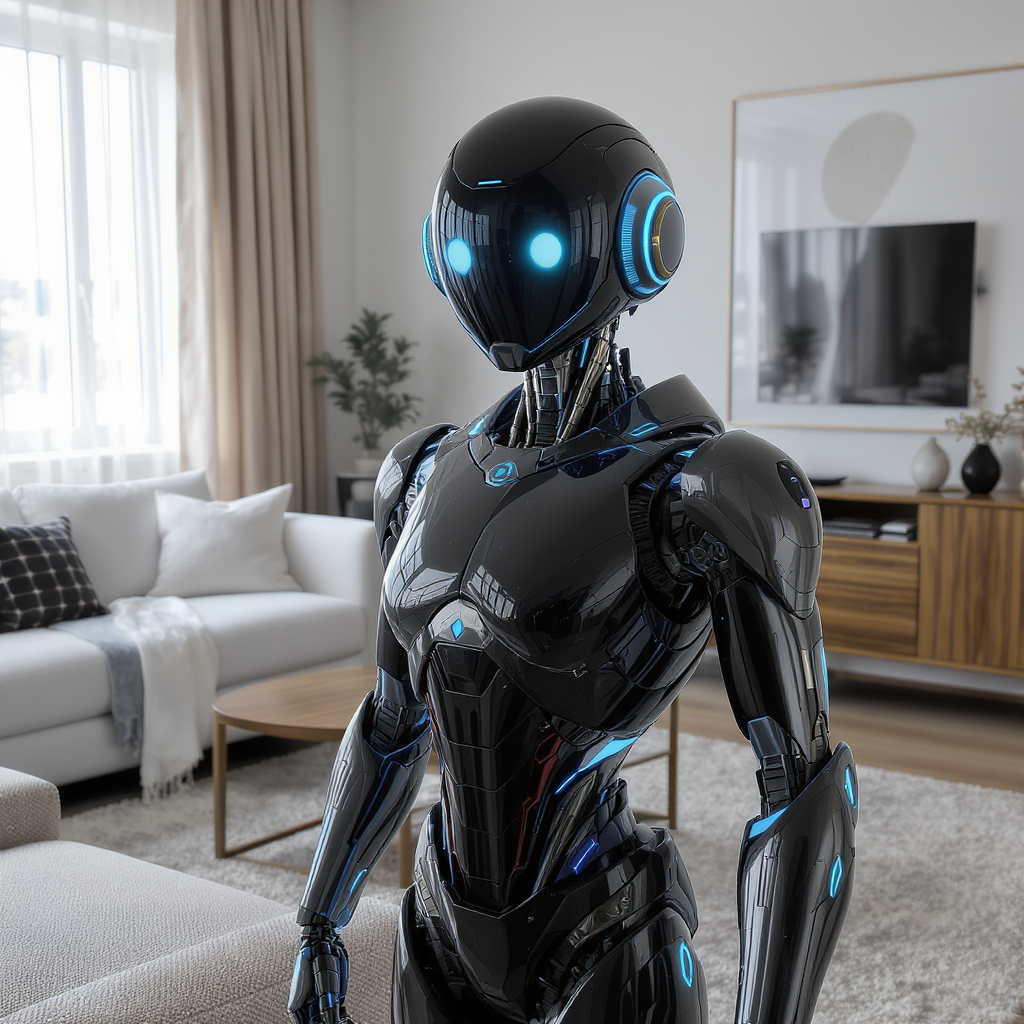
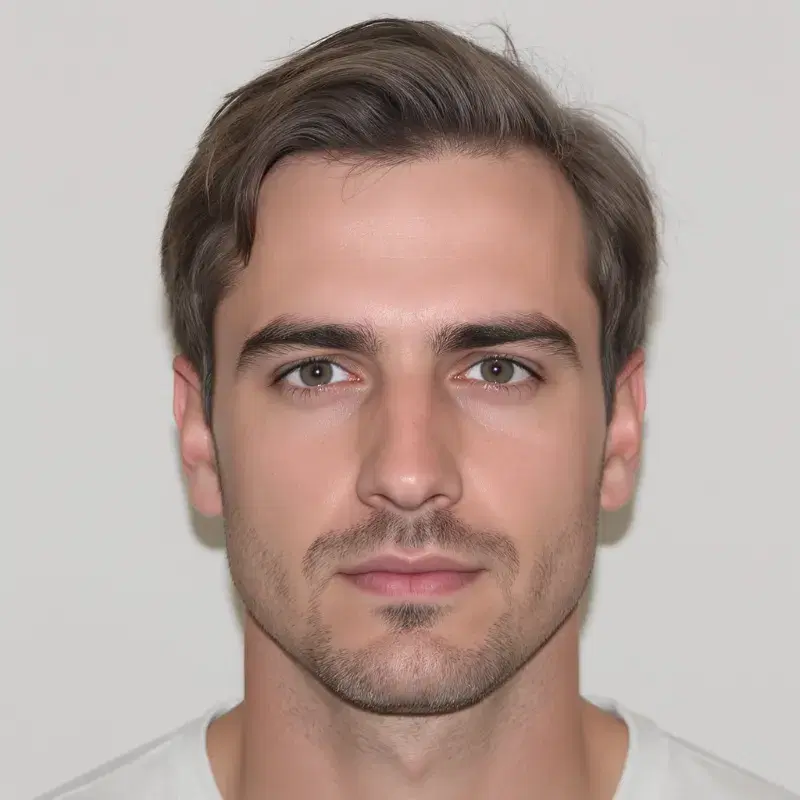
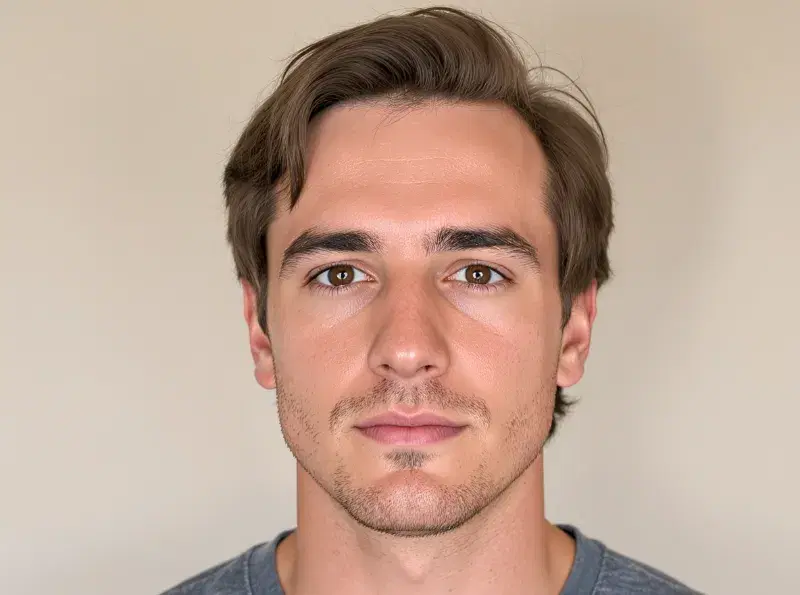
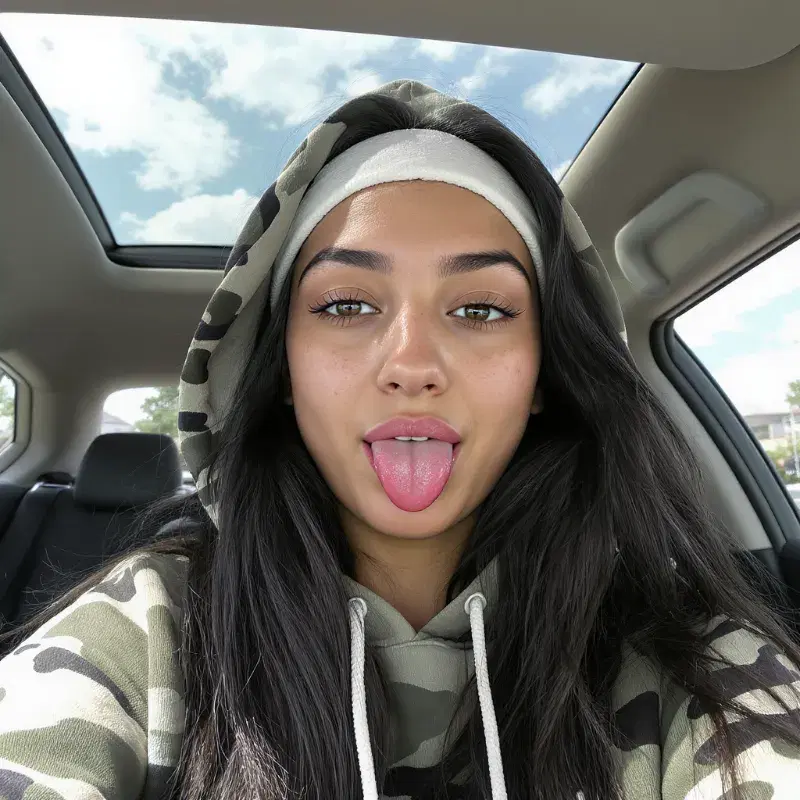
Capabilities
Image input
Yes
Limits
Max reference images
1
Generation credits
Depends on the configured run. Review the estimate before generating and the settled charge in history.
Parameters and inputs
Each field below shows what the model accepts and the limits to apply.
Parameters
Model Variant
model_variant
- Required
- No
- Default
- pro
Options
- Pro (pro)
- Max (max)
Aspect Ratio
aspect_ratio
- Required
- No
- Default
- 1:1
Options
- 1:1 (1:1)
- 3:4 (3:4)
- 4:3 (4:3)
- 9:16 (9:16)
- 16:9 (16:9)
- 3:7 (3:7)
- 7:3 (7:3)
Prompt Upsampling
prompt_upsampling
- Required
- No
- Default
- false
Seed Enabled
seed_enabled
- Required
- No
- Default
- true
Seed
seed
- Required
- No
- Default
- —
Compare workflows for FLUX Kontext
Another single-source editing workflow. Compare whether the requested change is correct and unrelated details remain acceptable.
Consider this integration when the brief needs multiple reference images with distinct roles.
Frequently asked questions
Does this workflow require a reference image?
The FluxoKit integration accepts an optional image. Supply one when the task is to change an existing scene; a prompt-only task does not preserve a source you have not provided.
Which variant should I choose?
Review the available Pro and Max choices and their configured estimates. Compare actual results for the same brief; this guide does not claim that a variant wins every task.
Can I make several edits in sequence?
Yes, but retain the original and compare the final result against it. Small changes can accumulate across successive generated images.
Will a person's identity remain exact?
Do not assume exact preservation. Review facial details, clothing and other identifying features, and use only images you are authorized to edit.
How do I check the cost?
Use the configured credit estimate after choosing the variant and other settings. The subscription price is not a universal cost per image; history records settled usage.
Next step
Use Flux Kontext without signing up for Black Forest Labs.
90+ AIs in one studio. Live USD checkout is processed through Stripe, with no API key to manage.
Related content
Category
Higgsfield AI Video Generator: Engines and Options | FluxoKit
Category
Higgsfield API: MCP Access, Providers, Alternatives | FluxoKit
Category
Higgsfield Face Swap: How It Works, Limits, Options | FluxoKit
Category
Higgsfield AI Pricing 2026: Plans, Credits, Fine Print | FluxoKit
Category
Grok Imagine: xAI's Image + Video Generator | FluxoKit
Category
Hailuo AI: MiniMax's Expressive Video Online | FluxoKit