
AI Image Upscaler
Soft frames become print-ready: resolution recovered, edges rebuilt, texture believable — without the plastic over-sharpened look.
The 25 models on this page are already included, with no separate subscription per tool. 14,500+ real generations already delivered on the platform. Updated
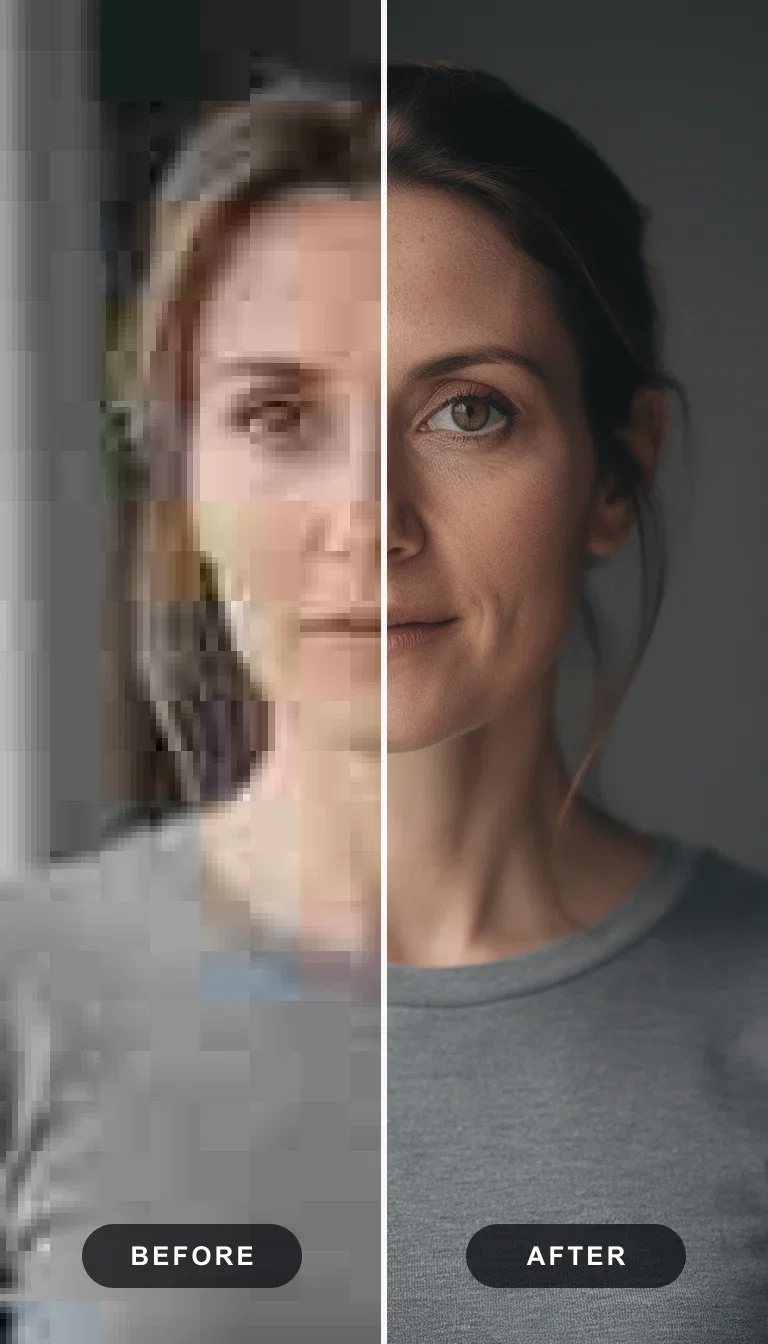
Portrait recovery
Pixelated to print-ready
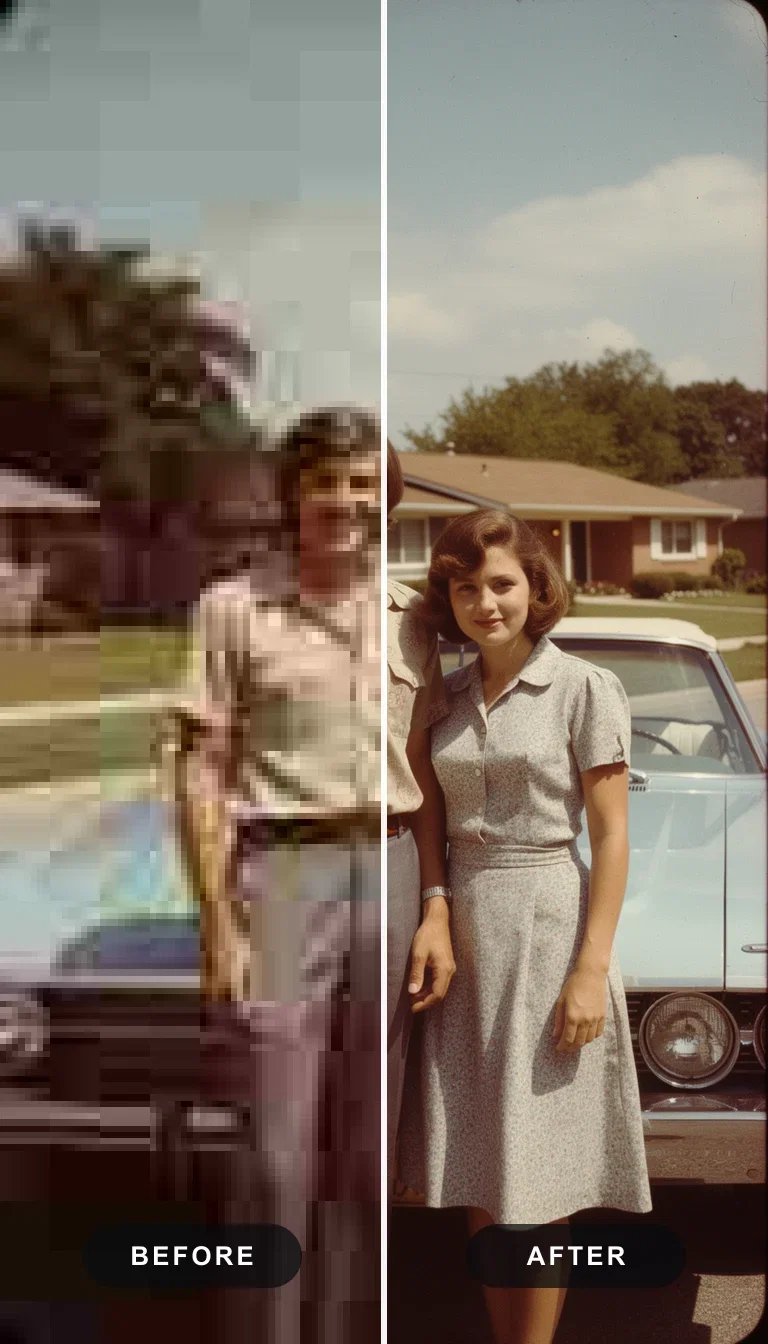
Old photo rescue
1970s scan recovered
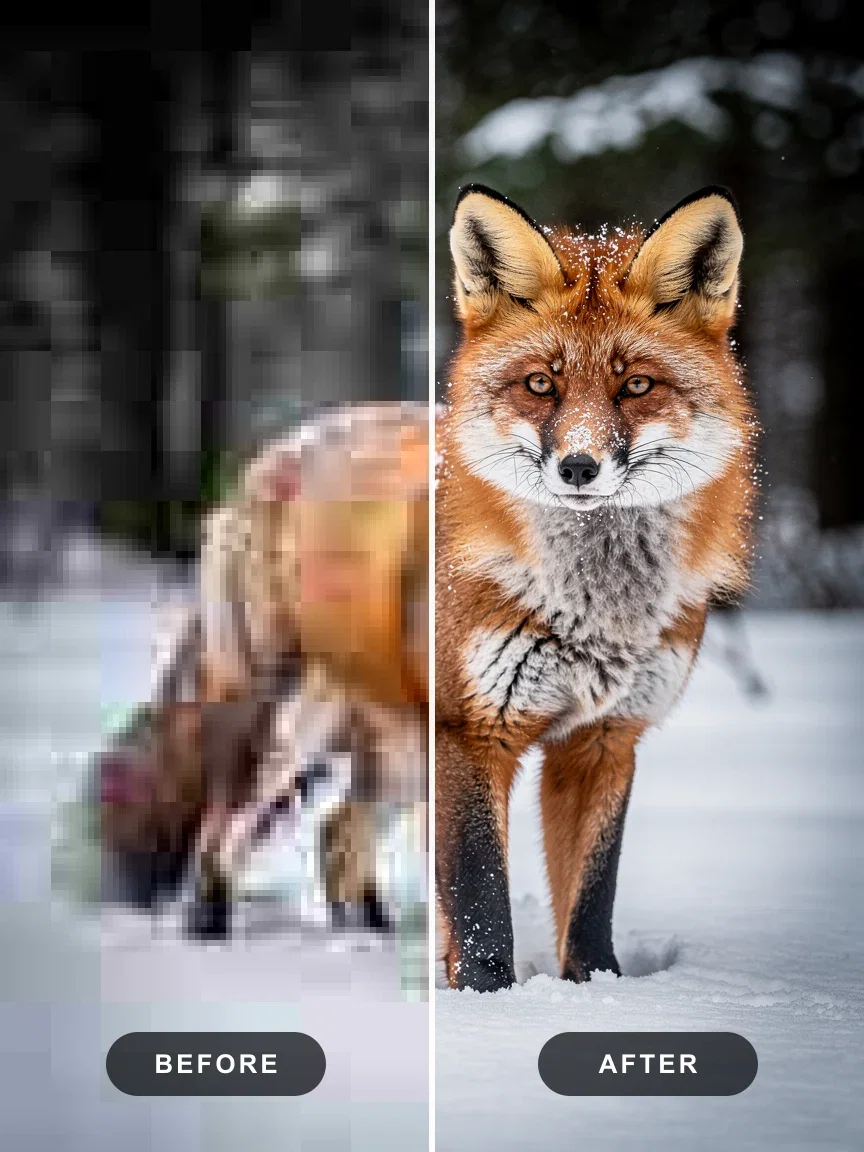
Fur detail
Guard hairs rebuilt
Detail recovery, not just enlargement
Classic resizing spreads the same pixels thinner; AI upscaling re-synthesizes the detail the small file implies.
Iris fibers, feather barbs, and fabric weave come back as structure, not noise.
The result survives print sizes and full-screen displays that would expose a bicubic blow-up.
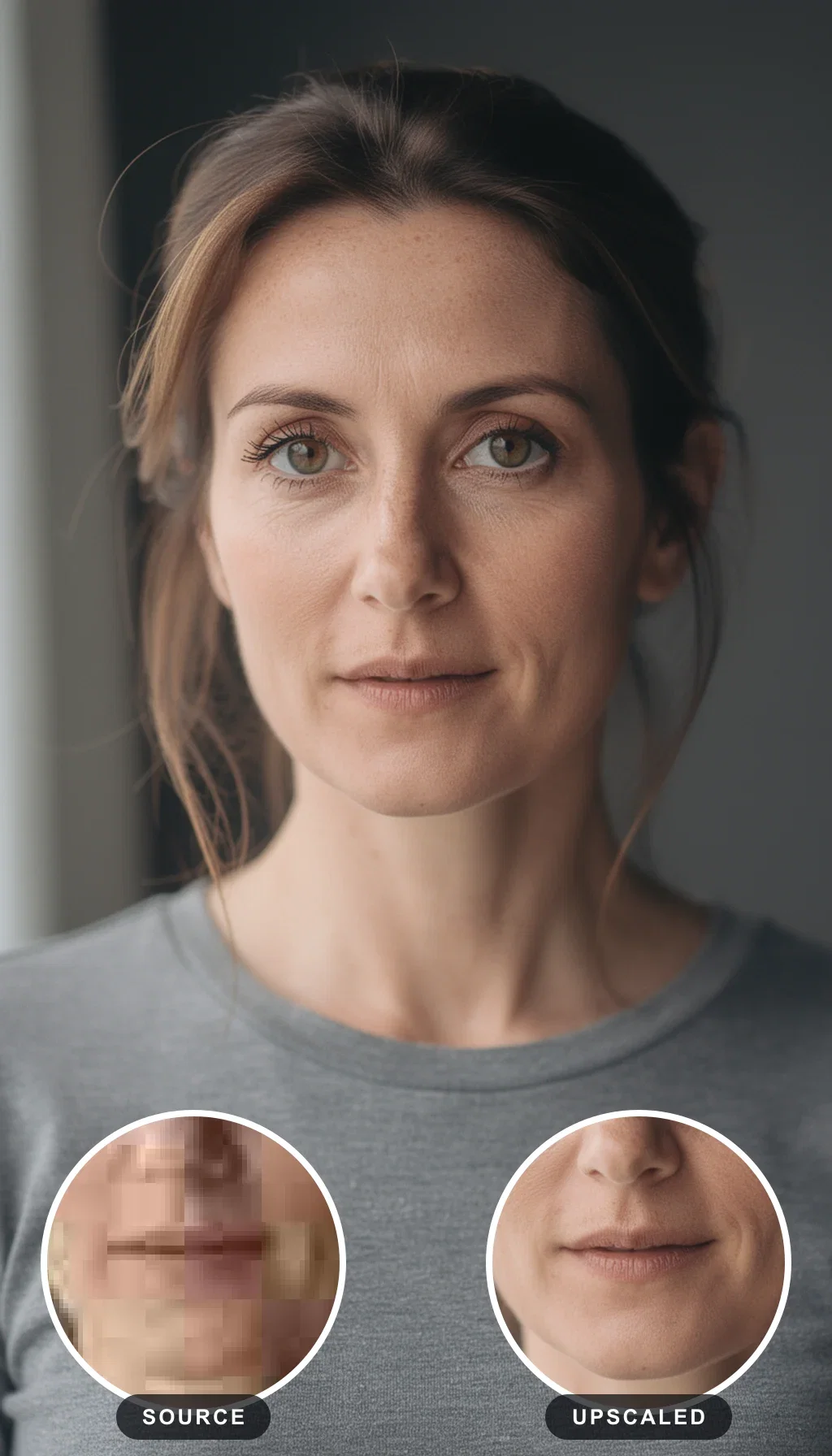
Detail loupe
Source vs upscaled, magnified
Any small file, delivery-sized
Powered by Topaz, Recraft Crisp, and Enhancor engines on one canvas.
Photos
Portraits, products, and scenes with texture-true recovery.
Graphics and type
Logos and UI shots kept crisp-edged, not halo-sharpened.
Generations
Model output pushed to 4K or print resolution as a final node.
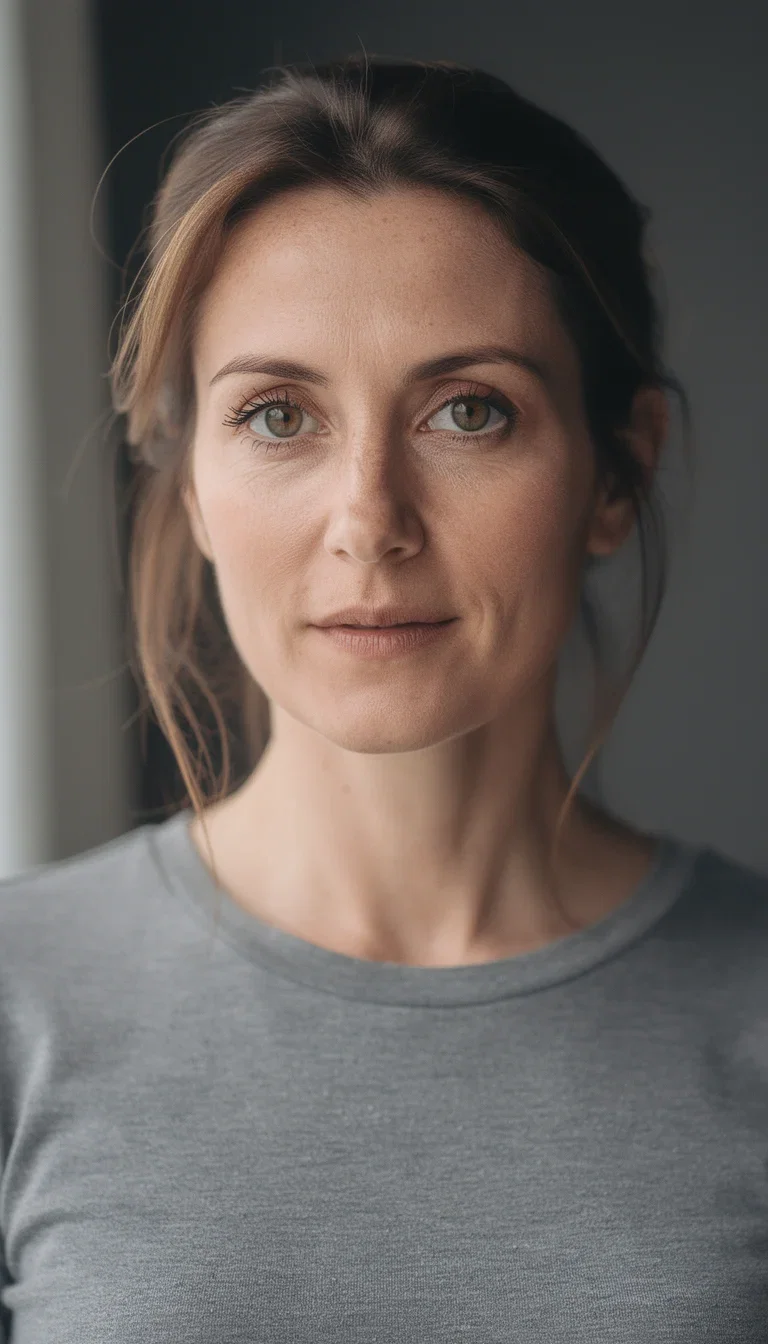
Portraits
Texture-true recovery
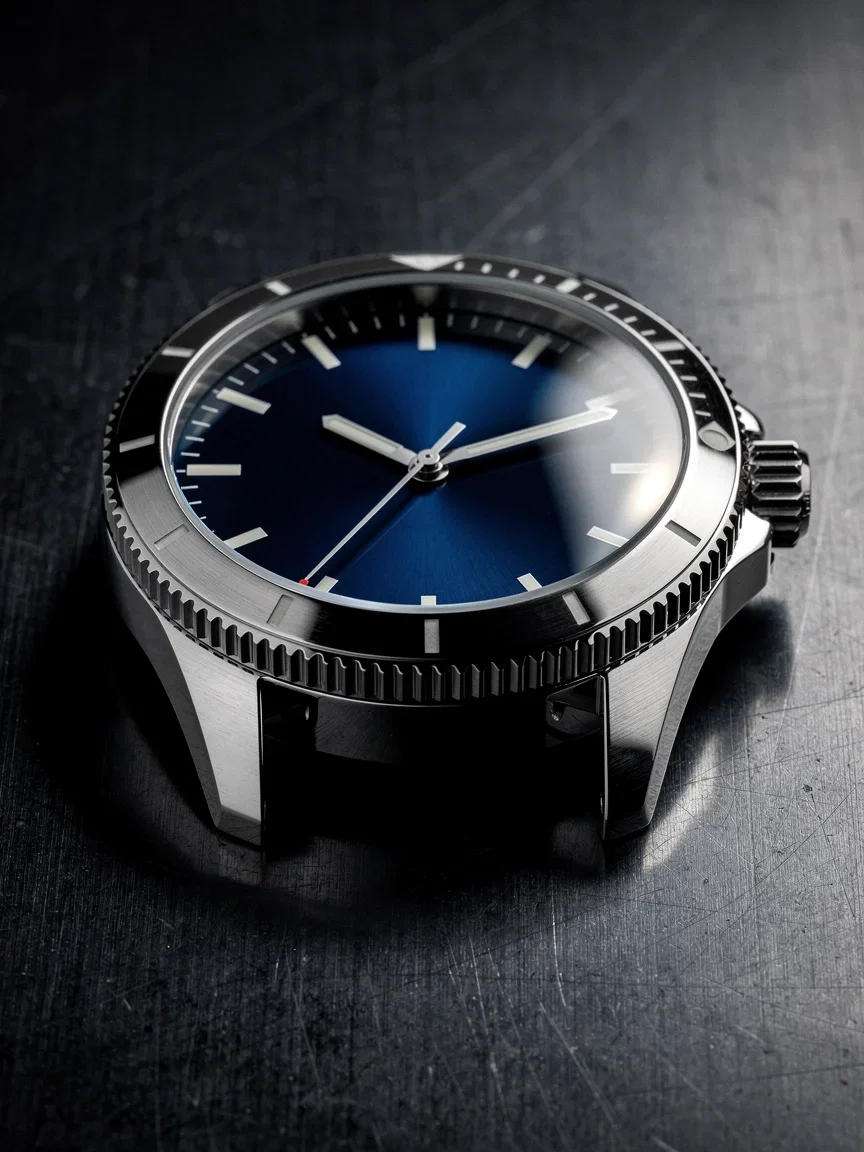
Products
Catalog resolution
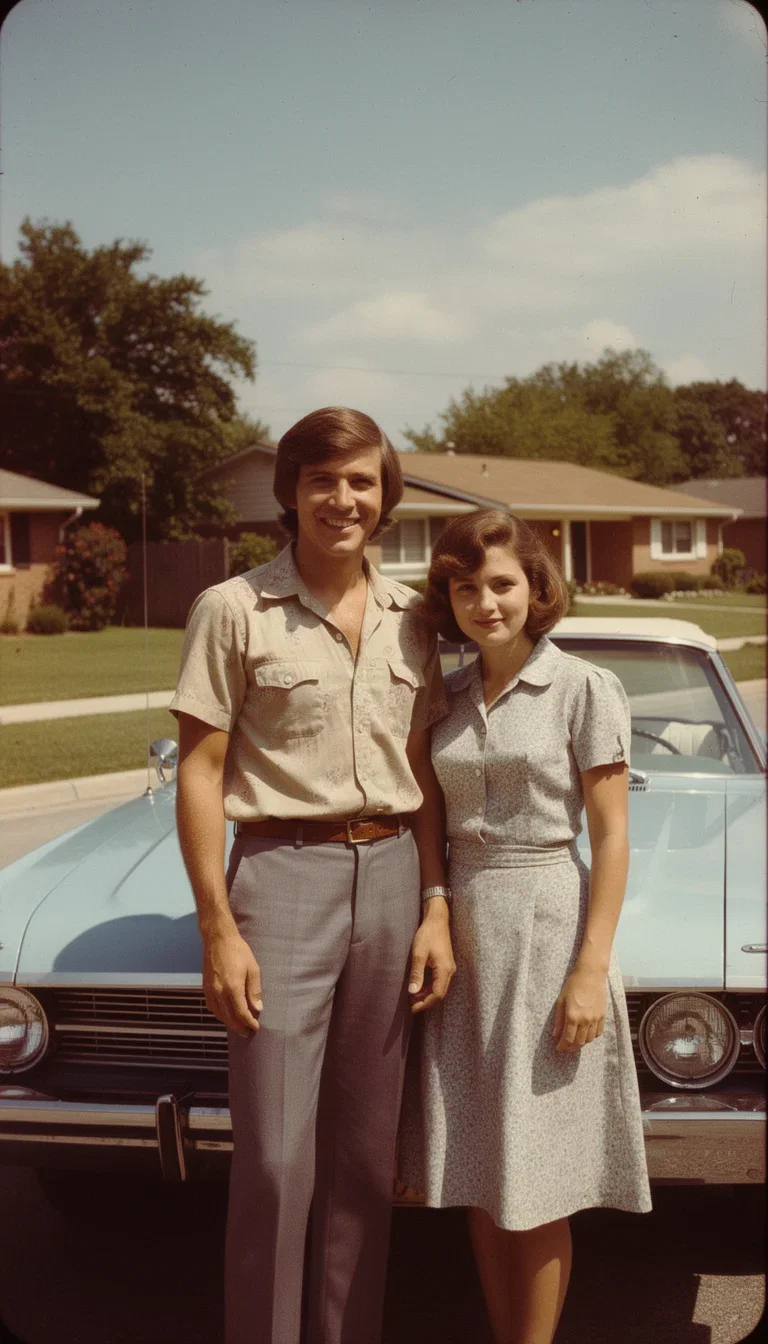
Archives
Scans brought back
Wildlife
Before and after
Rescue the files you actually have
The logo from an old email, the product shot from a discontinued listing, the team photo that only exists at 800 pixels.
Real workflows run on found files — the upscaler makes them usable at today's sizes.
Batch a folder of small assets to delivery resolution in one pass.
Old photo rescue
1970s scan recovered
The finishing step of every workflow
Generated images ship at model resolution; campaigns need 4K heroes and print needs 300 DPI.
On the canvas the upscale is one node after the generation, the edit, or the restoration.
Topaz-class engines handle photos; crisp-vector engines handle graphics and type.
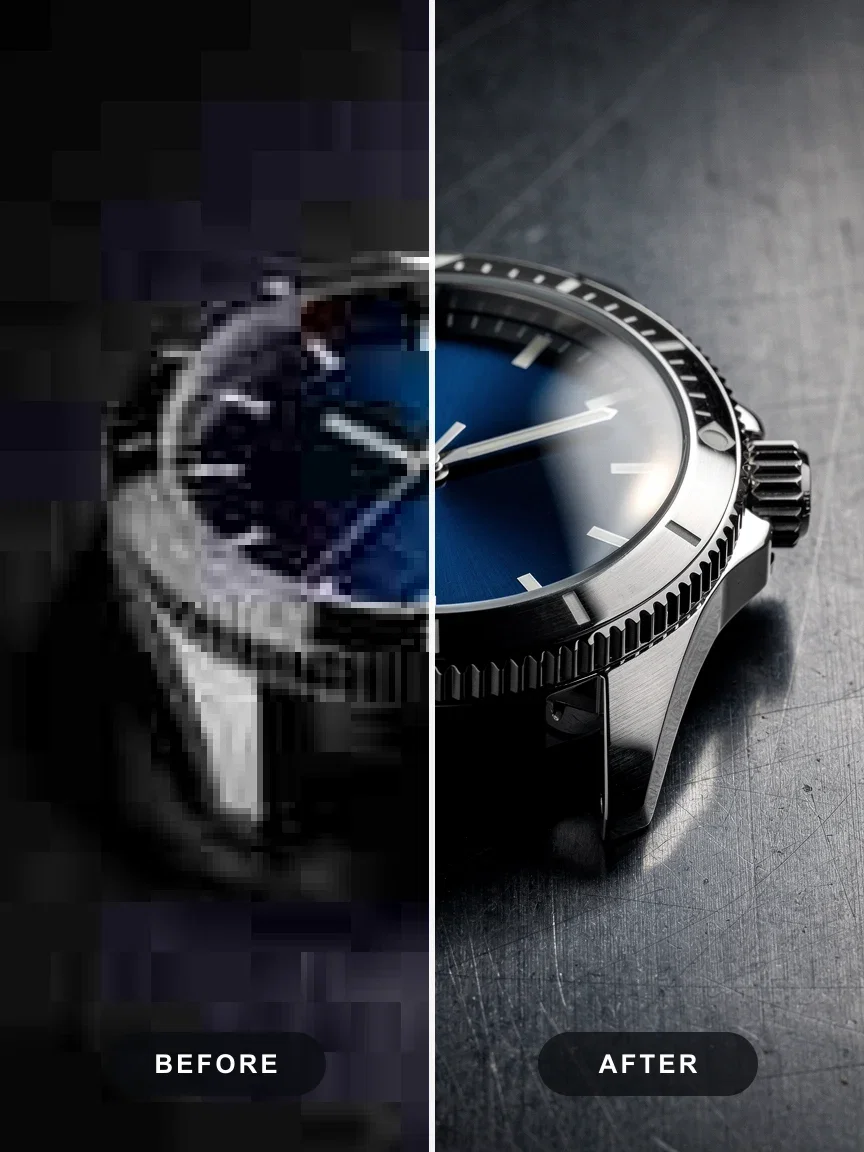
Product detail
Listing shot recovered
FluxoKit by the numbers
127+
AI models in one canvas
4K+
delivery resolution output
14,500+
real generations delivered
Real recoveries, done on FluxoKit
Every split is the same file twice — the pixelated source on the left, the recovered structure on the right.
Lashes recovered
Portrait detail
Knurling recovered
Product detail
The source
Any small file
How to upscale an image with AI
Upload the small file
Screenshots, old exports, and found files all work — the engine reads what the pixels imply.
Pick the engine
Photo engines for texture, crisp engines for graphics and type — mismatches cause the plastic look.
Export at delivery size
4K for screens, 300 DPI for print, platform sizes for social — one upscale per destination.
An AI image upscaler in 2026 replaces a professional retouch for most commercial cases. FluxoKit runs the leading upscale engines on one canvas, in plain English, priced per image.
When teams search for an AI image upscaler, the real question is rarely "which app exists." It is "which engine handles this specific image without inventing detail, and how do I scale to a full catalog without breaking budget." This page turns that question into a workflow that runs inside FluxoKit.
Direct Answer
Use FluxoKit when an image has to gain resolution and sharpness without bouncing between subscriptions. The canvas keeps the original, the engine choice, the variations, and the export in one place. That matters most when the asset ships to a hero shot, a print piece, an ad, or an ecommerce catalog.
The common mistake is to lock everything into one upscaler. Each engine has a clear strength:
- Topaz Image Upscale for technical quality, with Standard, Lo-Fi, and High Fidelity modes.
- Recraft Crisp Upscale for faithful enlargement that does not invent detail.
- Enhancor Image Upscale for portraits and natural skin texture.
- Flux Kontext for context aware refinement on a specific region.
How to Use It in FluxoKit
- Upload the image at /workflow. The canvas accepts PNG, JPG, and WebP up to 20MB.
- Decide the destination: print at 300 DPI, 4K digital, web standard, or ecommerce catalog. Each destination has a different target resolution.
- Pick the engine by image type: Topaz for general technical quality, Recraft for faithful preservation, Enhancor for portraits, Flux Kontext for region specific refinement.
- Set the factor: 2x for light adjustment, 4x for significant enlargement, 6x for large print. Avoid 8x or higher on a very small source.
- Run the upscale, compare two variations on a critical image, and export.
Engine Comparison
- Topaz Image Upscale is the reference on technical quality. Standard mode for general work, Lo-Fi for poor source quality, High Fidelity for maximum preservation. Medium cost, premium output. Best first choice for most cases.
- Recraft Crisp Upscale is conservative by design. The algorithm does not invent detail. Best for a professional file that needs a clean factor without aesthetic change.
- Enhancor Image Upscale is built for portraits and skin. Keeps natural texture, avoids plastic skin. Best for model photography, corporate portraits, and restored family pictures.
Use Cases
- Ecommerce and catalog with a low resolution product photo turned into a 4K hero shot.
- Professional print for a brand catalog, packaging, or outdoor at 300 DPI without reshooting.
- Real estate with property photos given new sharpness and detail for portals and virtual tours.
- Event photography with wedding or family sessions converted into high resolution albums.
- Marketplace catalogs for Amazon, Shopify, and Mercado Livre with batch automation.
- Restored archive with old family photos brought to a 4K version ready to print.
Professional Flow for Ecommerce
A realistic estimate for a one hundred product catalog:
- Triage on the canvas: about fifteen minutes.
- Topaz 2x or 4x in parallel batch: twenty to forty minutes of processing.
- Flux Kontext on the ten critical hero shots: thirty minutes.
- Final review and color uniformity: thirty minutes.
Total: roughly two hours for one hundred premium product images. Cost stays in the cents per image range, with no separate platform subscriptions per engine.
Common Mistakes That Hurt Quality
- Forcing the factor too high. 8x on a 300 by 300 source invents detail. Start at 2x and only scale if needed.
- Locking into one engine. Topaz can flatten skin in portraits, Recraft is not the right tool for poor source quality. Match the engine to the image.
- Ignoring the destination. A 4x factor for a standard 1080p web image is overkill. A 2x factor for a 4K print may not be enough.
- Skipping side by side comparison. For a brand catalog, run Topaz and Recraft in parallel on the first image and pick the engine that matches the visual style.
- Dropping metadata. For archive or professional photography, preserve the original EXIF when exporting.
Where FluxoKit Beats Standalone Tools
Upscaling rarely happens alone. The full flow usually involves background work, color tuning, and sometimes a re-generation of one specific region. FluxoKit keeps all of that on one canvas, so you do not export and re-import between platforms.
The same image can move into editing, restoration, background removal, or image to video without losing the history.
Related Next Steps
How to Choose
- Separate catalog, print, portrait, and region specific tasks.
- Show engine selection criteria instead of a single recommendation.
- Move the reader to restoration, background removal, or generation when the next intent changes.
Why creators upscale on FluxoKit
One canvas replaces the upscale subscription and the resolution anxiety.
Structure, not sharpening
Detail re-synthesized from the image, never halo artifacts.
Photo and graphic engines
Texture-true recovery for photos, crisp edges for type and logos.
Chained workflows
Generate, edit, restore, then upscale — one canvas end to end.
Batch the archive
A folder of small assets to delivery resolution in one pass.
One plan, monthly credits
Upscaling shares the credit pool with every other engine.
First-subscription guarantee
Recover real files for a month. Refund requests are governed by the first-subscription guarantee and Refund Policy.
25 models available in the canvas
Every model below is live in the FluxoKit studio. Each link opens its technical page with parameters, limits, and real generation examples.
- 01

Flux 2 Pro
Black Forest Labs · Image editing
- 02
Flux 2 Flex
Black Forest Labs · Image editing
- 03
Flux Kontext
Black Forest Labs · Image editing
- 04

Seedream 5.0 Edit
ByteDance · Image editing
- 05
Seedream 5.0 Pro Edit
ByteDance · Image editing
- 06
Seedream 5.0 Pro Reference
ByteDance · Image editing
- 07

GPT Image-1 Edit
OpenAI · Image editing
- 08
GPT Image-1.5 Edit
OpenAI · Image editing
- 09
GPT Image-2 Edit
OpenAI · Image editing
- 10
GPT Image 2.5 Sunburst Edit
OpenAI · Image editing
- 11

Grok Image 2 Edit
xAI · Image editing
- 12
Grok Image Edit
xAI · Image editing
- 13

QWEN Image Editor Plus
Alibaba Cloud · Image editing
- 14
QWEN Image Editor Max (New)
Alibaba Cloud · Image editing
- 15
QWEN Image Editor 2.0 Pro
Alibaba Cloud · Image editing
- 16

Nano Banana Pro Edit (Gemini 3.0)
Google AI · Image editing
- 17
Nano Banana Pro 2 Edit (Gemini 3.1)
Google AI · Image editing
- 18

Recraft Crisp Upscale
fal.ai · Image editing
- 19

Topaz Image Upscale
Topaz Labs · Image editing
- 20

MiniMax Image-01 Edit
MiniMax · Image editing
- 21
Flux 2 Pro Edit
Black Forest Labs · Image editing
- 22
Flux 2 Flex Edit
Black Forest Labs · Image editing
- 23
Flux 2 Klein 9B LoRA Edit
Black Forest Labs · Image editing
- 24
HY-WU Edit
HY-WU · Image editing
- 25
Flux Kontext Edit
Black Forest Labs · Image editing
Frequently asked questions
What is the best AI image upscaler?
Topaz Image Upscale is the reference for technical quality, especially for print and premium hero shots. Recraft Crisp Upscale leads when you need a faithful enlargement without inventing detail. Enhancor Image Upscale is the choice for portraits and skin. FluxoKit runs all of them on one canvas, so you pick by image and not by platform.
How much does upscaling cost on FluxoKit?
You pay per image inside your FluxoKit plan. A simple 2x upscale costs cents, a premium 4x costs more, and a batch of one hundred catalog images scales linearly. You replace several US-dollar subscriptions with one plan that covers all the engines.
Can I upscale 8x on a tiny photo?
Technically yes, but start with 2x or 4x. An 8x factor on a very small image invents detail that was not there. For extreme enlargement use Topaz in Lo-Fi mode with progressive iteration.
Does it work for an ecommerce catalog in batch?
Yes. The canvas processes batches in parallel. A two hundred product catalog can be uploaded once, sent through the chosen engine, and returned in higher resolution in minutes.
Will the upscale change the photo too much?
Pick the engine for the job. Recraft Crisp Upscale and Topaz in High Fidelity preserve the original. Enhancor handles portraits without plastic skin. Avoid stretching factors and avoid running a generative model when you just need a faithful enlargement.
Next step
Access 127 AIs in one canvas, without subscribing to each one.
One plan, monthly credits, soft to sharp without the plastic look. Start today.
Ready when you are
Upscale your first image in seconds
Soft to sharp without the plastic look — one canvas, one plan, backed by a 30-day first-subscription satisfaction guarantee, subject to the Refund Policy.