AI Photo Editor
Edit photos by describing the change: place your logo, swap objects, restyle surfaces — six editing engines, one canvas, no masks.
The 25 models on this page are already included, with no separate subscription per tool. 14,500+ real generations already delivered on the platform. Updated
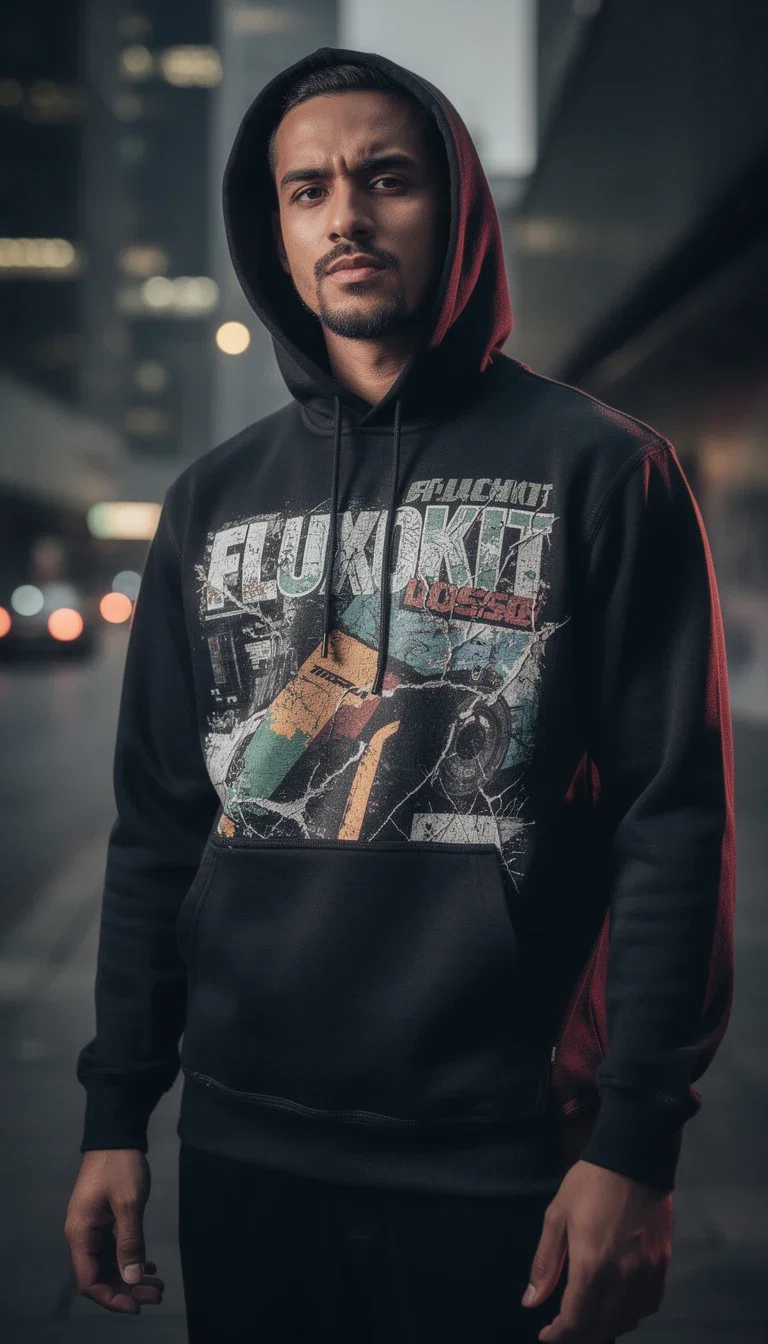
FluxoKit generation
Screen-print added to apparel
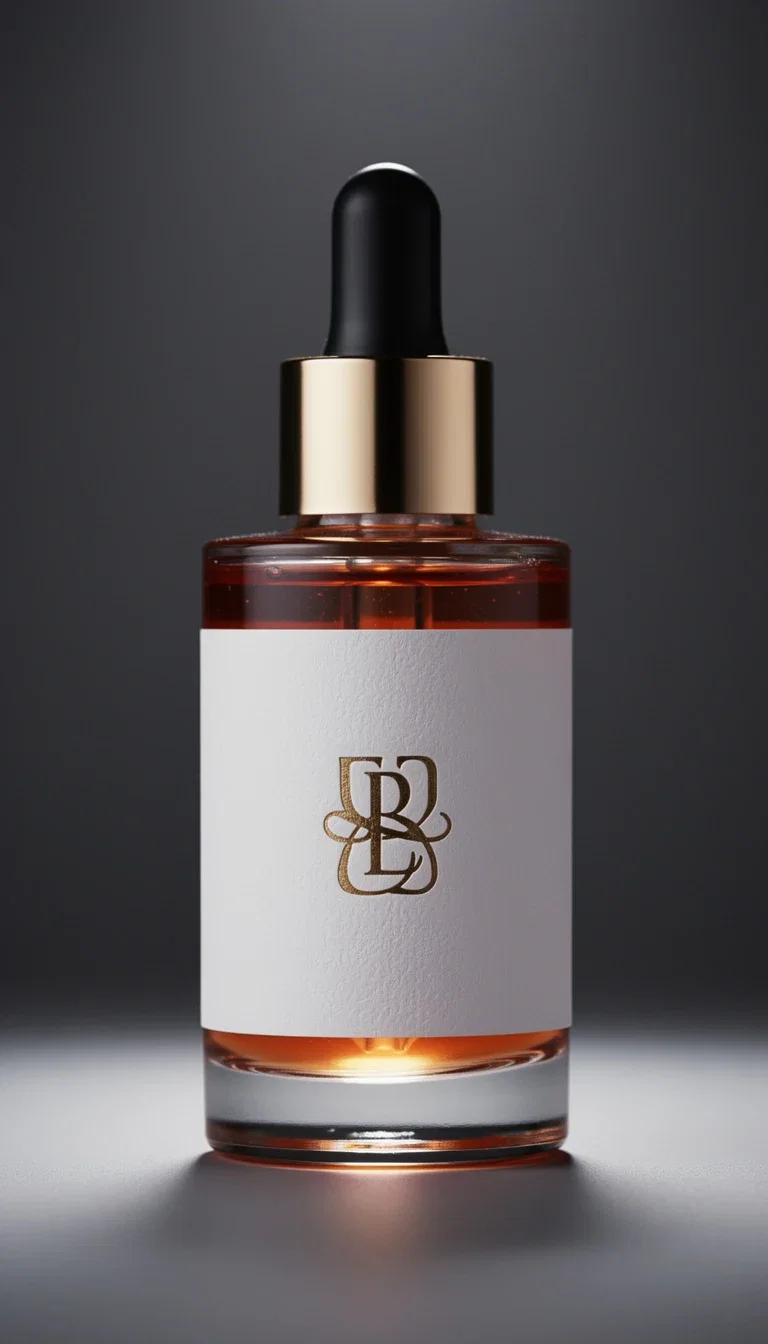
FluxoKit generation
Logo foil-stamped onto a label
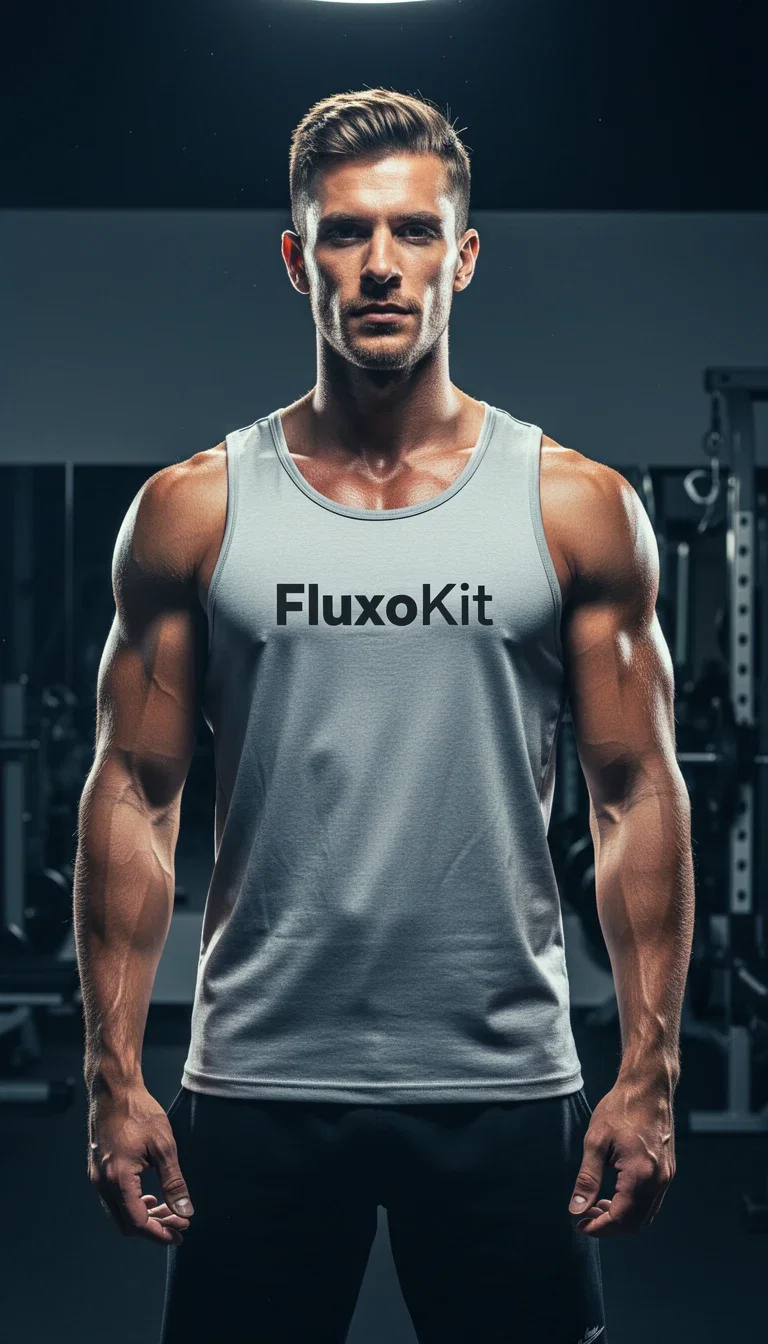
Logo conformed
Logo conformed to fabric
Your brand, into any photo
Every image in this set is the same brand asset placed into a different photo — foil-stamped on glass, screen-printed on cotton, patterned on wrap paper.
The editing engines match perspective, lighting, and material so the placement reads as photographed, not pasted.
One sentence per edit; no layer masks, no pen tool.
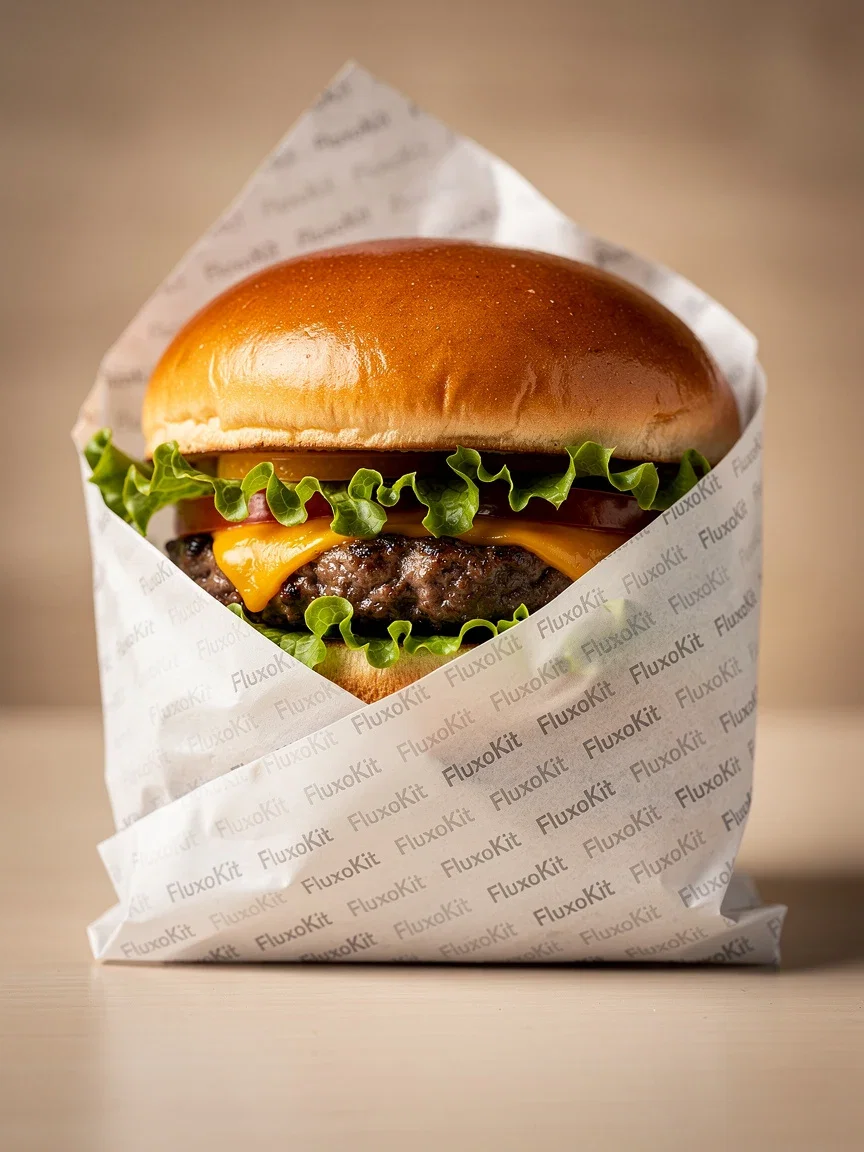
FluxoKit generation
Pattern printed on packaging
Three inputs, one edited photo
Powered by GPT Image 2, Nano Banana Pro 2, Qwen, FLUX, and Seedream editing engines.
Your photo
The packshot, the lifestyle shot, or the scene that needs the change.
The change, in words
Place the logo, swap the object, restyle the surface — one instruction.
A reference
Optionally anchor the edit to a brand asset or style reference.
Foil stamp
On glass
Screen print
On cotton
Wrap pattern
On paper

Object insert
In scene
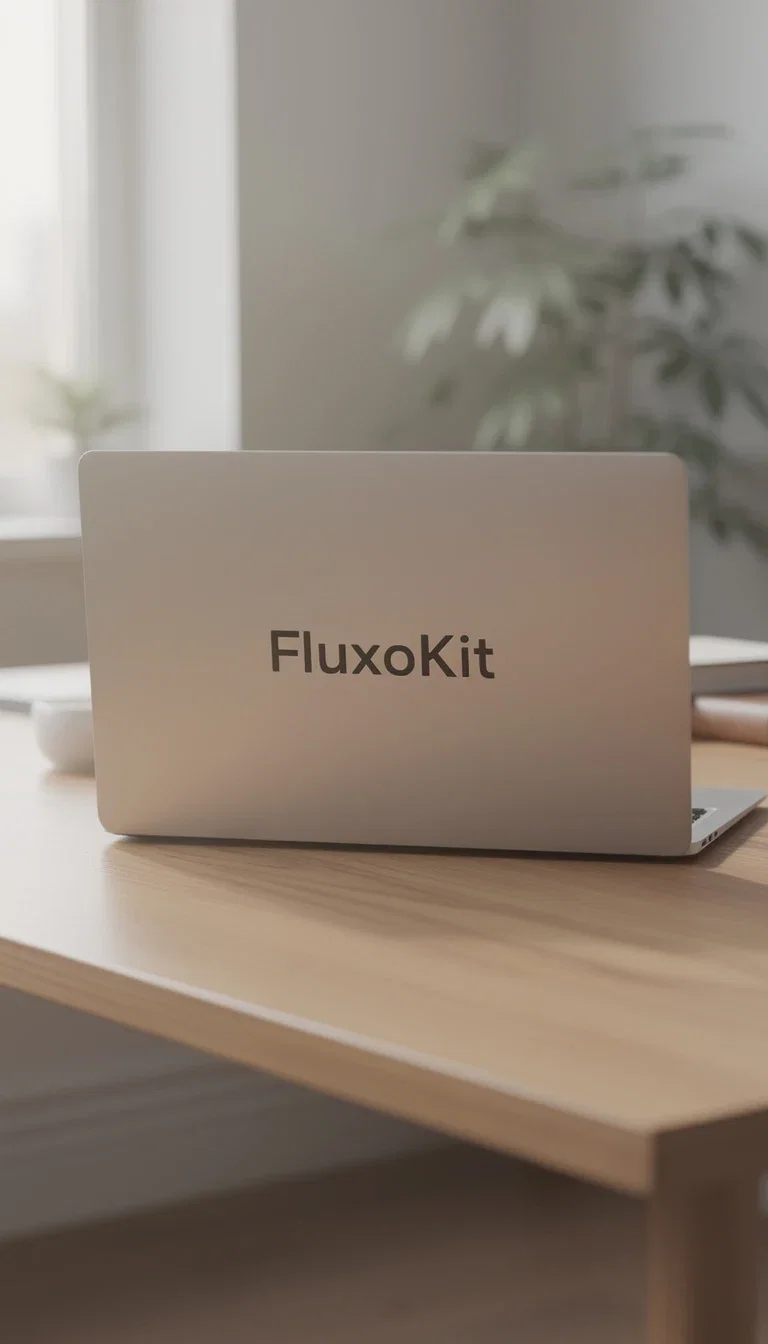
Surface logo
On matte
Edits that respect the material
A logo on fabric bends with the folds. A stamp on glass catches the highlight. A print on paper wraps the crease.
Modern editing engines model the surface, not just the pixels — the difference between a mockup and a photo.
Compare how two engines handle the same placement and keep the more convincing read.
Logo conformed
Logo conformed to fabric
Insert, remove, restyle
Beyond branding: add objects that cast the right shadow, remove what should not be there, and restyle surfaces in place.
The edit happens where the photo lives — on the same canvas as the generators, upscalers, and video engines.
Chain an edit into an upscale or an animation without exporting.
FluxoKit generation
Object inserted into the scene
FluxoKit by the numbers
127+
AI models in one canvas
15+
editing engines available
14,500+
real generations delivered
Real edits, made on FluxoKit
Six engines, six materials, one brand asset — every edit here was a sentence, not a Photoshop session.
Laptop-lid branding
FLUX Kontext
Hoodie print
Nano Banana Pro 2
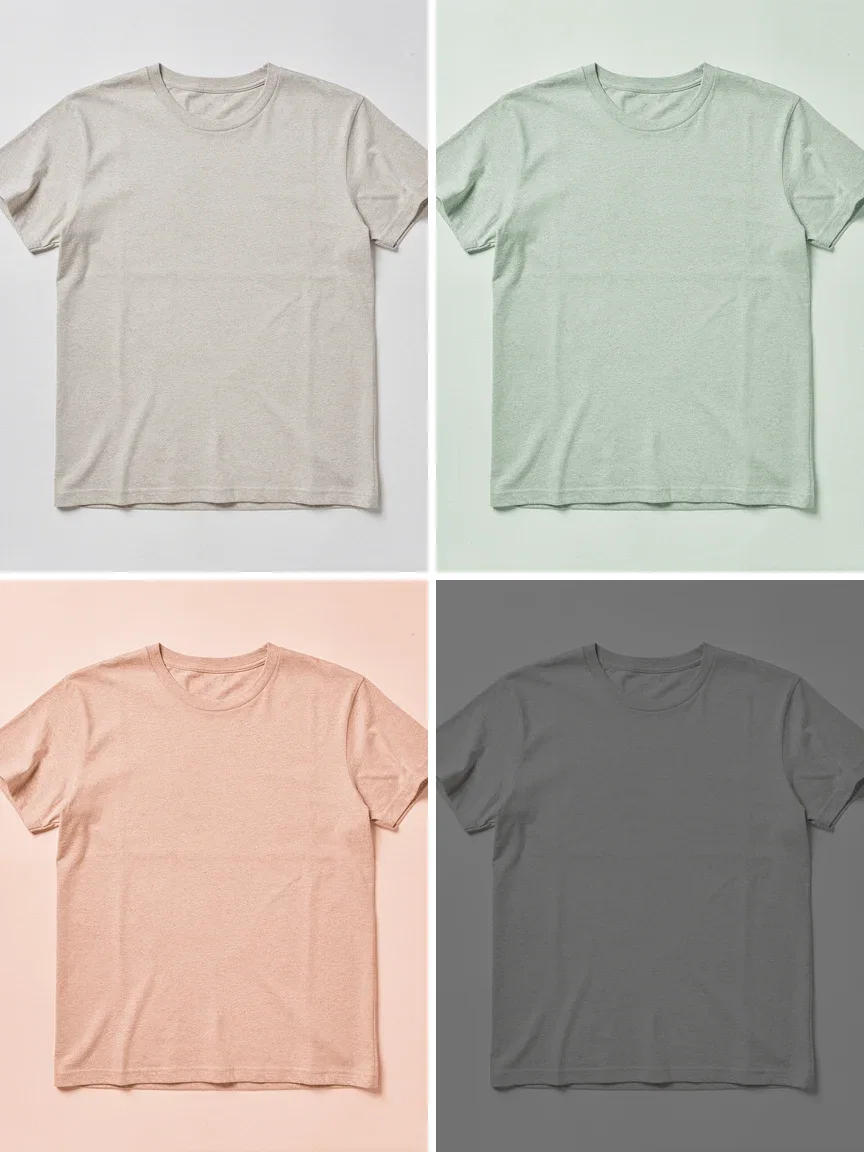
Colorway pass
One tee, four dyes
How to edit photos with AI
Upload the photo
Any photo — packshot, lifestyle, interior, or portrait. The engines work from your real pixels.
Describe one change
Specific instructions win: name the object, the placement, and the material. One edit per pass keeps results clean.
Compare and refine
Run the edit on two engines when the material is tricky. Keep the convincing one, then chain the next edit.
A good AI photo editor in 2026 is not a filter. It is a workflow that swaps backgrounds, changes objects, fixes light, retouches portraits, and upscales, while keeping the original identity intact. FluxoKit hosts Flux Kontext, Nano Banana Edit, GPT Image 2 Edit, Topaz, Recraft, and Enhancor on one canvas.
When marketers, agencies, and creators search for an AI photo editor, the question is usually which engine to use for which task and how to keep the base photo intact. This page turns that search into a workflow.
Direct Answer
Use FluxoKit when you need to take a real photo to a finished asset without copying prompts between tools. The canvas keeps the source, the edit, the variations, and the export in one place. Pick the engine by the task, not by the most familiar name:
- Flux Kontext for contextual swaps: background, object, light, composition.
- Nano Banana Pro 2 Edit for prompt-faithful edits with preserved identity.
- Topaz Image Upscale for technical upscale when sharpness and resolution are the goal.
- Recraft Crisp Upscale for clean graphic detail on product and layout work.
- Enhancor Skin Realism for portraits and human finishing with controlled realism.
How to Use It in FluxoKit
- Open the canvas at /workflow and upload the source photo.
- State the goal: remove background, change the scene, fix old light, retouch.
- Pick the engine by output, not by the most famous name.
- Write the prompt with subject, action, constraint, and final format.
- Generate two small variations before spending on the final piece.
Measure the result as a production asset. If the edit ships to Meta Ads, a Shopify hero, a Reel, or a print catalog, judge sharpness, brand fit, prompt adherence, retouch realism, and iteration cost.
How to Edit Without Breaking the Base Image
Before you ask for a big edit, write down what cannot change: the face, the packaging, the logo, the brand color, the product position, the proportion. Then split the edit into stages: clean the background, fix the light, change the scene, upscale, and only then generate variations. This is the fastest way to avoid "the edit looks nice but is unusable" for an ad or a catalog.
Use Cases
- Remove background for clean ecommerce hero shots.
- Swap scene to test 10 backgrounds on the same product photo.
- Restore old photos with retouch and upscale in the same canvas.
- Retouch portraits with controlled realism for ads and editorial.
- Create product variants in different colors, environments, or angles.
Writing a Better Prompt
A strong edit prompt has five blocks: goal, context, visual, constraint, and format. Replace "improve this photo" with what must appear, what cannot move, and the final format. Example: "Edit product photo keeping packaging and proportions, remove background, add soft studio light, realistic shadow, light gray background, square output for catalog." That gives the engine enough to produce a real asset.
Where FluxoKit Beats Standalone Tools
Single-engine editors lock you to one algorithm. The moment a hair edge fails or a packaging label warps, you have no fallback. FluxoKit lets you switch between Flux Kontext, Nano Banana Edit, GPT Image 2 Edit, Topaz, Recraft, and Enhancor on the same canvas, with the same source photo and the same brief.
Related Next Steps
How to Choose
This page is built so readers, AI assistants, and Google can pick an editor by task and risk, not by a static ranking.
- Separate remove background, change background, upscale, retouch, and variant tasks.
- Show selection criteria by subject and deformation risk.
- Connect editing to the next intent: upscale, restore, animate, or ship.
Why creators edit photos on FluxoKit
One canvas replaces the photo editor, the mockup tool, and the retoucher.
Sentence-level editing
No masks, layers, or pen tools — the instruction is the edit.
Material-aware results
Fabric bends, glass reflects, paper wraps — placements read as photographed.
Every editing engine
GPT Image 2, Nano Banana Pro 2, Qwen, FLUX, and Seedream on one canvas.
Chain the workflow
Edit, upscale, then animate — the photo never leaves the canvas.
One plan, monthly credits
Credits work across editors, generators, and video engines alike.
First-subscription guarantee
Edit real photos for a month. Refund requests are governed by the first-subscription guarantee and Refund Policy.
25 models available in the canvas
Every model below is live in the FluxoKit studio. Each link opens its technical page with parameters, limits, and real generation examples.
- 01

Flux 2 Pro
Black Forest Labs · Image editing
- 02
Flux 2 Flex
Black Forest Labs · Image editing
- 03
Flux Kontext
Black Forest Labs · Image editing
- 04

Seedream 5.0 Edit
ByteDance · Image editing
- 05
Seedream 5.0 Pro Edit
ByteDance · Image editing
- 06
Seedream 5.0 Pro Reference
ByteDance · Image editing
- 07

GPT Image-1 Edit
OpenAI · Image editing
- 08
GPT Image-1.5 Edit
OpenAI · Image editing
- 09
GPT Image-2 Edit
OpenAI · Image editing
- 10
GPT Image 2.5 Sunburst Edit
OpenAI · Image editing
- 11

Grok Image 2 Edit
xAI · Image editing
- 12
Grok Image Edit
xAI · Image editing
- 13

QWEN Image Editor Plus
Alibaba Cloud · Image editing
- 14
QWEN Image Editor Max (New)
Alibaba Cloud · Image editing
- 15
QWEN Image Editor 2.0 Pro
Alibaba Cloud · Image editing
- 16

Nano Banana Pro Edit (Gemini 3.0)
Google AI · Image editing
- 17
Nano Banana Pro 2 Edit (Gemini 3.1)
Google AI · Image editing
- 18
Recraft Crisp Upscale
fal.ai · Image editing
- 19

Topaz Image Upscale
Topaz Labs · Image editing
- 20

MiniMax Image-01 Edit
MiniMax · Image editing
- 21
Flux 2 Pro Edit
Black Forest Labs · Image editing
- 22
Flux 2 Flex Edit
Black Forest Labs · Image editing
- 23
Flux 2 Klein 9B LoRA Edit
Black Forest Labs · Image editing
- 24
HY-WU Edit
HY-WU · Image editing
- 25
Flux Kontext Edit
Black Forest Labs · Image editing
Frequently asked questions
What is the best AI for editing photos?
The best AI for editing photos depends on the edit: Flux Kontext leads for contextual swaps in backgrounds, objects, and light; GPT Image 2 Edit handles multi-step written instructions; Nano Banana Edit is the most prompt-faithful for natural-language changes; Topaz and Recraft Crisp own technical upscaling; Enhancor wins portrait skin realism. FluxoKit runs all of them on one canvas, so you compare results on the same photo instead of guessing.
What is an AI photo editor?
An AI photo editor changes a real photo with model-driven edits: swap a background, change an object, fix the light, upscale, retouch skin, or create variants. The right engine depends on the task: Flux Kontext for contextual swaps, Nano Banana Edit for prompt-faithful changes, GPT Image 2 Edit for multi-step instructions, Topaz for technical upscale, Recraft for crisp graphic detail, and Enhancor for portrait realism.
Can I edit photos with AI without losing the original detail?
Yes. Before you ask for a big edit, decide what cannot move: the face, the packaging, the logo, the brand color, the product position, or the final aspect ratio. Then run the edit in stages: clean the background, fix the light, change the scene, upscale, and only then iterate on variants. That keeps the image base intact.
Which engine handles complex multi-step edits?
GPT Image 2 Edit accepts verbal multi-step instructions in one prompt (for example: remove background, add a soft floor reflection, keep the natural shadow). For visual fidelity in delicate edges like hair, fabric, and glass, Flux Kontext is the default. For organic Brazilian Portuguese or natural English prompts, Nano Banana Edit is the easiest path.
How much does AI photo editing cost on FluxoKit?
Pay per edit in one plan, cents per generation, with a 30-day satisfaction guarantee on your first paid subscription, subject to the Refund Policy. You skip the stack of per-tool subscriptions and you compare engines on the same canvas without re-uploading the photo.
How do I know the edit is good enough?
Judge the result by destination: brand fit, prompt adherence, sharpness on the final size, retouch realism, and iteration cost. For critical pieces, run two engines in parallel and compare on the canvas before exporting.
Next step
Access 127 AIs in one canvas, without subscribing to each one.
One plan, monthly credits, and every editing engine on this page. Make your first edit today.
Ready when you are
Make your first edit in seconds
Describe the change and watch it land — one canvas, one plan, backed by a 30-day first-subscription satisfaction guarantee, subject to the Refund Policy.