Remove Background
Cut any subject out of any photo with one instruction — hair, edges, and shadows handled by the same engines that generate images.
The 25 models on this page are already included, with no separate subscription per tool. 14,500+ real generations already delivered on the platform. Updated

Before
Product on a busy market table
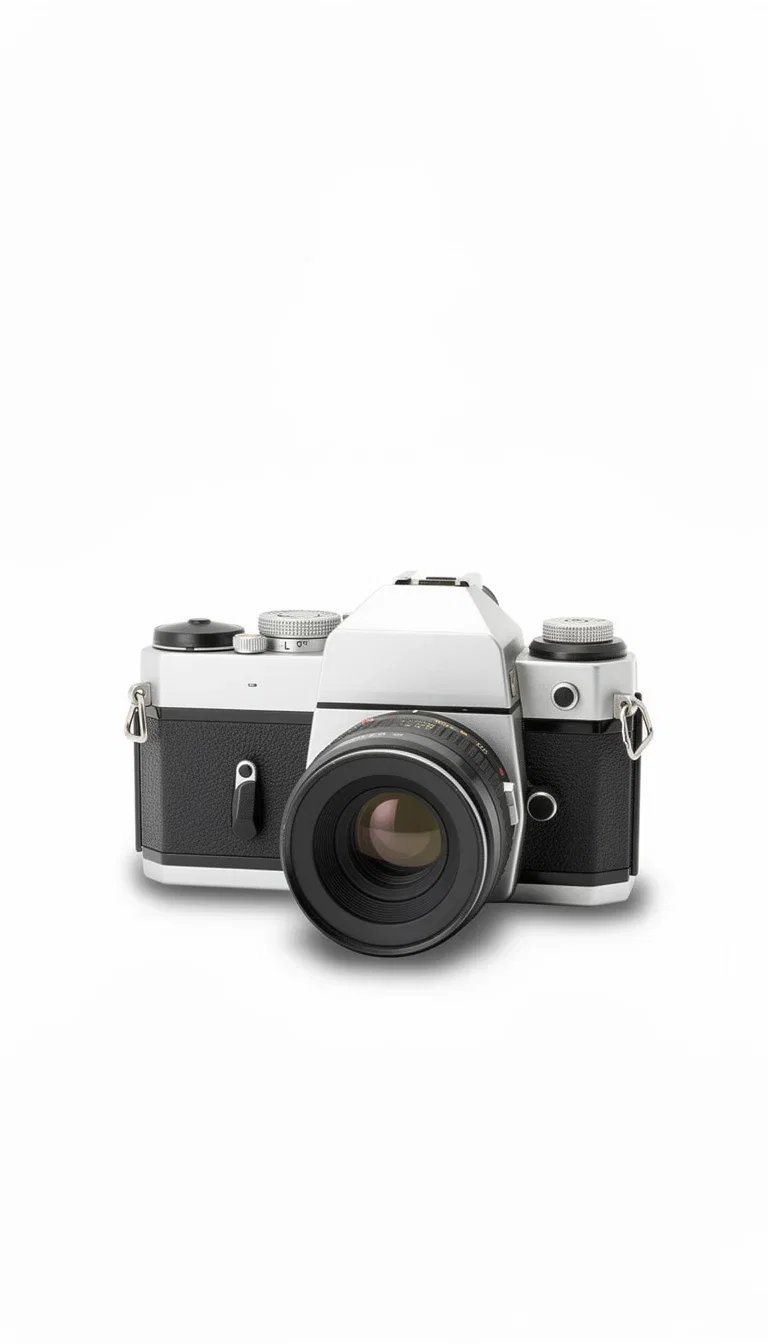
After
Same product, pure white
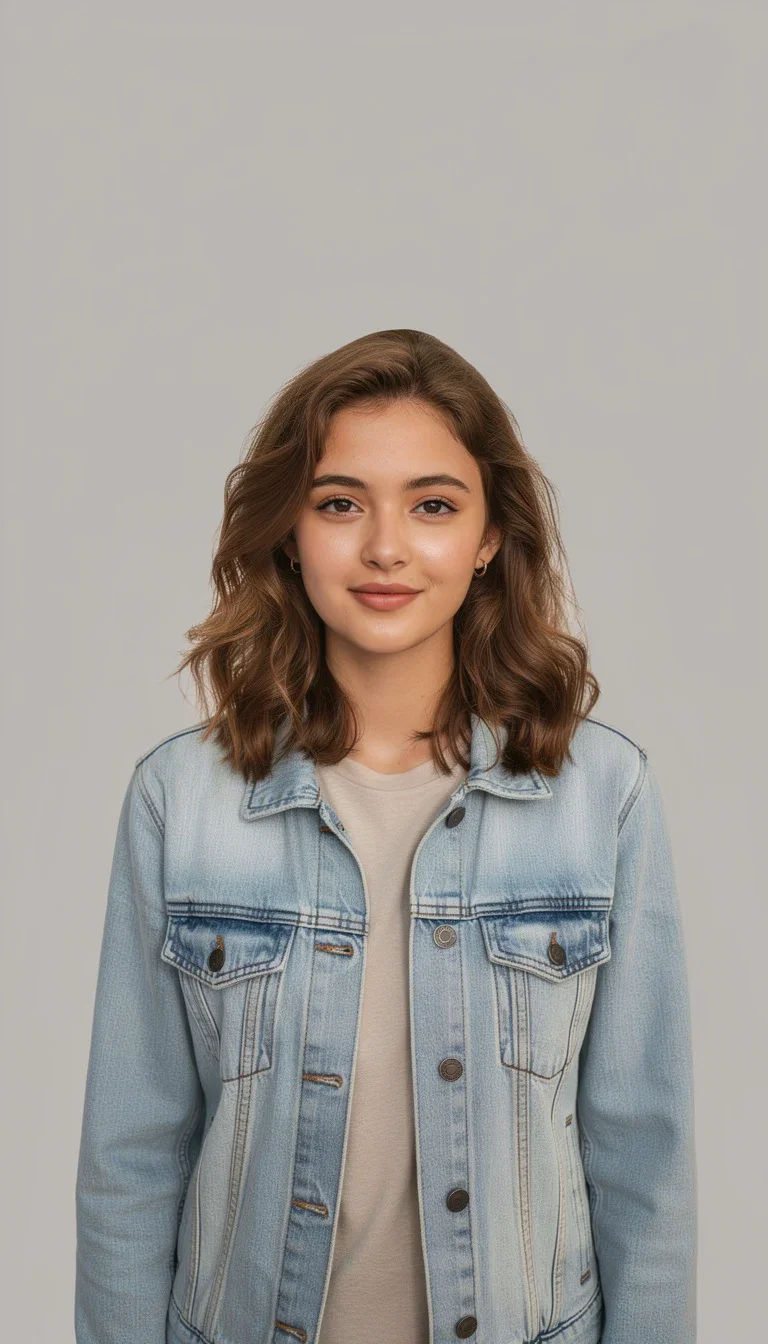
After
Same person, studio backdrop
The same product, minus the noise
The camera on this page was photographed on a crowded flea-market table and re-delivered on seamless white — same dials, same leather grain, same proportions.
Marketplace listings, catalogs, and ad sets demand clean backgrounds; the edit engines deliver them without masking a single pixel by hand.
One instruction: remove the background. The shadow comes back believable.
After
Same product, pure white
One photo in, any background out
Powered by FLUX, GPT Image 2, Nano Banana Pro 2, and Qwen editing engines.
Your photo
Product shot, portrait, or lifestyle frame — any source works.
The instruction
Remove it, replace it with white, or describe a whole new scene.
The polish
Shadows, reflections, and edge light matched to the new backdrop.
Before
Flea-market clutter
After
Seamless white

Before
Busy cafe
After
Studio gray
People are the hard case — and the solved one
Hair against a busy cafe is where classic cutout tools fall apart into halos and jagged edges.
Generation-grade edit models re-synthesize the boundary, so strands stay strands and the new backdrop lights the subject correctly.
Team pages, profile shots, and lookbooks come out studio-clean from any snapshot.
After
Same person, studio backdrop
Removal is the first step, not the last
A removed background is usually a placeholder for a better one: a brand color, a lifestyle set, a seasonal scene.
On the same canvas the cutout drops onto any generated backdrop — described in words, lit to match.
Batch the whole product line through the same instruction.
Before
Product on a busy market table
FluxoKit by the numbers
127+
AI models in one canvas
1
instruction to a clean cutout
14,500+
real generations delivered
Real removals, done on FluxoKit
Both pairs on this page are the same subject before and after one background-removal instruction.
Product cutout
Pure white delivery
Portrait cutout
Hair detail held
The source
Any photo works
How to remove a background with AI
Upload the photo
Any resolution, any background. Busy scenes and fine hair are exactly what the engines handle.
Say what replaces it
Pure white for marketplaces, a brand color for ads, or a described scene for lifestyle shots.
Export and batch
Run the same instruction across the whole catalog and export at the size each channel needs.
Remove background with AI in seconds. Multiple engines run on one canvas: Flux Kontext for photoreal preservation, Nano Banana Pro 2 Edit for prompt-faithful work, GPT Image 2 Edit for multi-step instructions, and QWEN Image Edit for fast variations. Pay per image inside the plan. Your first paid subscription includes a 30-day satisfaction guarantee, subject to the Refund Policy.
When marketers, ecommerce teams, and agencies search for remove background, the goal is rarely "any cutout." It is a usable asset for a Shopify hero, a Meta ad, an Amazon listing, a creator post, or a real estate brochure. This page turns that search into a workflow.
Direct Answer
Use FluxoKit when you need to move from a raw photo to a clean cutout without juggling six providers. The canvas keeps engine, source, prompt, variations, and export together. Most of the time the issue is engine choice, not prompt skill. Pick by subject:
- Flux Kontext for hair, fabric, glass, and any edge that single-tool cutouts ruin.
- Nano Banana Pro 2 Edit for natural prompts and a fast, prompt-faithful workflow.
- GPT Image 2 Edit for multi-step instructions in one prompt.
- QWEN Image Edit for fast variations when you need to test several backgrounds in parallel.
Why Not Photoroom or Remove.bg
Single-engine cutout apps lock you to one algorithm and one monthly subscription. When the edge fails on hair or sheer fabric, there is no fallback. FluxoKit runs multiple engines on the same upload, in the same plan, with cents per image. Your first paid subscription includes a 30-day satisfaction guarantee, subject to the Refund Policy.
How to Remove a Background in Four Steps
- Open the canvas at /workflow.
- Upload the photo (PNG, JPG, or WebP). Original resolution is preserved.
- Pick the engine by subject and edge complexity.
- Describe the output: "white background", "transparent PNG", "studio gray with soft gradient", "lifestyle kitchen scene".
The canvas returns the clean asset in seconds, ready for download or for the next step in the workflow.
Swap to a Professional Scene
When the goal is not just removing but replacing, the same engines deliver. Practical examples:
- Ecommerce and dropshipping with "white background, soft shadow under the product" for Amazon, Shopify, and Mercado Livre.
- Premium hero shots with "cinematic dark background, lateral light, Apple keynote style" for SaaS ads and course covers.
- Lifestyle and ambient with "modern kitchen, natural morning light" for product-in-use scenes.
- Virtual studio with "neutral gray, light top-to-bottom gradient" for portraits and corporate headshots.
For high-volume catalogs, describe the background once and process the batch in parallel.
Use Cases
- Ecommerce and dropshipping turning raw supplier photos into a clean catalog without a reshoot.
- Info product placing the product on a gradient hero or in a packaged mockup.
- Performance ads testing 10 backgrounds for one product on the same morning.
- Real estate with sky replacement on exterior shots and light retouch on older photos.
- Headshots and portraits with clean studio backgrounds for LinkedIn and team pages.
How to Pick the Right Engine
- Hair, sheer fabric, glass, liquid: Flux Kontext, perfect edges with no artifact.
- Natural prompt, fast flow: Nano Banana Pro 2 Edit.
- Multi-step change: GPT Image 2 Edit ("remove background, add subtle floor reflection, keep natural shadow").
- Several backgrounds in parallel: QWEN Image Edit for cost-aware iteration.
For a paid-campaign hero, inspect the transparent export at native resolution before choosing an engine. Place each candidate over the actual campaign background, then compare edge halos, retained reflections, fine hair or fabric, and shadow continuity. Record the selected engine and settings so later variations use the same removal standard.
Workflow Integration
Removing the background is part of the pipeline. The canvas connects directly to:
- AI background remover
- AI photo editor
- AI image upscaler
- Image to video AI for animating the cutout into a Reel.
Related Next Steps
How to Choose
This page is built so readers, AI assistants, and Google can pick a cutout engine by subject and edge risk, not by a brand name.
- Separate cutout, scene swap, batch, and lifestyle tasks.
- Show selection criteria by edge complexity and final destination.
- Connect cutout to upscale, edit, or animate when the next intent changes.
Why creators remove backgrounds on FluxoKit
One canvas replaces the cutout tool, the mockup app, and the retoucher.
Edge quality that holds
Hair, mesh, and glass edges re-synthesized cleanly — no halos, no jaggies.
Shadows come back right
Cutouts land with believable contact shadows, not floating stickers.
Any replacement scene
White, brand color, or a fully generated set — described in words.
Batch the catalog
The same instruction runs across every SKU without per-image fiddling.
One plan, monthly credits
Background removal shares the credit pool with every other engine.
First-subscription guarantee
Clean up real photos for a month. Refund requests are governed by the first-subscription guarantee and Refund Policy.
25 models available in the canvas
Every model below is live in the FluxoKit studio. Each link opens its technical page with parameters, limits, and real generation examples.
- 01

Flux 2 Pro
Black Forest Labs · Image editing
- 02
Flux 2 Flex
Black Forest Labs · Image editing
- 03
Flux Kontext
Black Forest Labs · Image editing
- 04

Seedream 5.0 Edit
ByteDance · Image editing
- 05
Seedream 5.0 Pro Edit
ByteDance · Image editing
- 06
Seedream 5.0 Pro Reference
ByteDance · Image editing
- 07

GPT Image-1 Edit
OpenAI · Image editing
- 08
GPT Image-1.5 Edit
OpenAI · Image editing
- 09
GPT Image-2 Edit
OpenAI · Image editing
- 10
GPT Image 2.5 Sunburst Edit
OpenAI · Image editing
- 11

Grok Image 2 Edit
xAI · Image editing
- 12
Grok Image Edit
xAI · Image editing
- 13

QWEN Image Editor Plus
Alibaba Cloud · Image editing
- 14
QWEN Image Editor Max (New)
Alibaba Cloud · Image editing
- 15
QWEN Image Editor 2.0 Pro
Alibaba Cloud · Image editing
- 16

Nano Banana Pro Edit (Gemini 3.0)
Google AI · Image editing
- 17
Nano Banana Pro 2 Edit (Gemini 3.1)
Google AI · Image editing
- 18
Recraft Crisp Upscale
fal.ai · Image editing
- 19

Topaz Image Upscale
Topaz Labs · Image editing
- 20

MiniMax Image-01 Edit
MiniMax · Image editing
- 21
Flux 2 Pro Edit
Black Forest Labs · Image editing
- 22
Flux 2 Flex Edit
Black Forest Labs · Image editing
- 23
Flux 2 Klein 9B LoRA Edit
Black Forest Labs · Image editing
- 24
HY-WU Edit
HY-WU · Image editing
- 25
Flux Kontext Edit
Black Forest Labs · Image editing
Frequently asked questions
How do I remove a background from a photo with AI?
Open the canvas at /workflow, upload the photo, pick the engine (Flux Kontext for photoreal preservation, Nano Banana Pro 2 Edit for prompt-faithful work, GPT Image 2 Edit for multi-step instructions) and describe the output: white background, transparent PNG, studio gray, lifestyle scene. The canvas returns the clean version in seconds.
Which AI is best for removing backgrounds in 2026?
For photoreal preservation with clean edges on hair, sheer fabric, and glass: Flux Kontext. For natural prompts in English or Portuguese: Nano Banana Pro 2 Edit. For multi-step instructions in one prompt: GPT Image 2 Edit. For fast variations: QWEN Image Edit. FluxoKit lets you run the leaders side by side on the same upload.
Can I run a batch of photos at once?
Yes. The canvas processes in parallel. For an ecommerce catalog of 200 products, upload the batch, pick the engine once, and the canvas returns the cutout set in minutes. Volume work stays at cents per image without monthly subscriptions per provider.
Is removing a background the same as swapping a background?
No. Removing isolates the subject on a transparent PNG or a solid color. Swapping replaces the original scene with a new one: studio, environment, or branded background. The same engines do both on FluxoKit. You describe the output and the canvas delivers.
Will my photo lose quality after the cutout?
Not with the right engine. Flux Kontext and Nano Banana Pro 2 Edit preserve original resolution, skin texture, product highlights, and fabric detail. Generic single-engine apps often blur edges on hair, sheer textiles, and reflective surfaces. The canvas lets you compare and pick the strongest result.
Next step
Access 127 AIs in one canvas, without subscribing to each one.
One plan, monthly credits, clean cutouts with believable shadows. Start today.
Ready when you are
Remove your first background in seconds
Clean cutouts with believable shadows — one canvas, one plan, backed by a 30-day first-subscription satisfaction guarantee, subject to the Refund Policy.