
Updated
Text to Video AI
Type the scene and get a finished video with Sora 2, Veo 3.1, Seedance, Kling, and Hailuo — no footage, no camera, no editing timeline. One canvas runs every leading text-to-video engine side by side.
The prompt
“Macro shot of glacial ice cracking under studio light, slow push-in, crisp commercial texture”
Prompt in, clip out — Seedance 2.0 text to video on FluxoKit
Seedance 2.0
Macro product texture from text
- AI models in one canvas
- 127+
- video engines on this page
- 30
- real generations delivered
- 14,500+
- first-subscription guarantee
- 30-day
A sentence in. A scene out.
Describe the subject, the motion, and the camera, and the engine synthesizes the whole shot — actors, lighting, and physics included.
Every leading text-to-video engine reads prompts differently: Sora 2 holds narrative beats, Kling leans dramatic, Seedance ships creator-style clips fastest.
FluxoKit runs them side by side, so the prompt you wrote once becomes three candidate clips instead of one gamble.
Runway Aleph
Cinematic brand shot from text
From idea to ad without a shoot
Product reveals, lifestyle scenes, and action beats that would need a set, a crew, and a week now come from a paragraph.
Write the hook with a chat model on the same canvas, generate the scene, and export vertical for TikTok and Reels or widescreen for YouTube.
Variations of the winning prompt cost credits, not reshoots.
Kling 2.6
Holographic product reveal from text
Every style, one canvas
Photoreal landscapes, macro product textures, stylized motion, UGC-style selfie reads — the style lives in the prompt, not in a template pack.
Switch engines when the brief changes instead of switching subscriptions.
Chain the winner into captions, a hook image, or an edit pass without leaving the canvas.
Hailuo
Action chase scene from text
Built around the prompt
Everything between the idea and the export lives on one canvas.
Scripts sharpened by AI
Chat models on the same canvas turn a rough idea into beats and hooks before you spend a single credit.
Every top engine
Sora 2, Veo 3.1, Seedance, Kling, Wan, Runway, Hailuo, and PixVerse — no per-model signups, no separate bills.
Set up to iterate
Run the same prompt on two engines, keep the winner, and generate variations without rebuilding the brief.
What a sentence can render

Commercial macro
Product texture at ad quality — snap, powder, and light from one line of text.

Beauty spot
A silk-set commercial frame with no studio, no product sample, no crew.
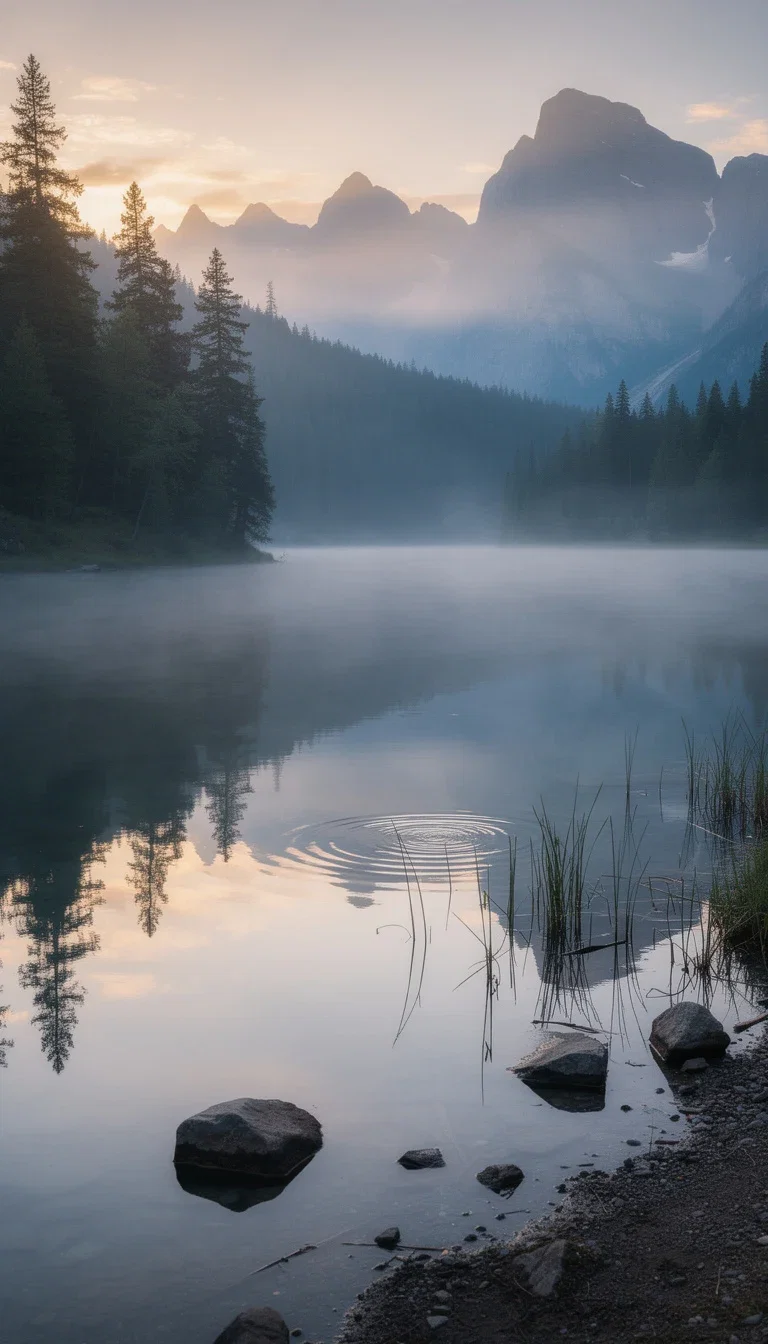
Photoreal landscape
Location scouting replaced by a style direction inside the prompt.
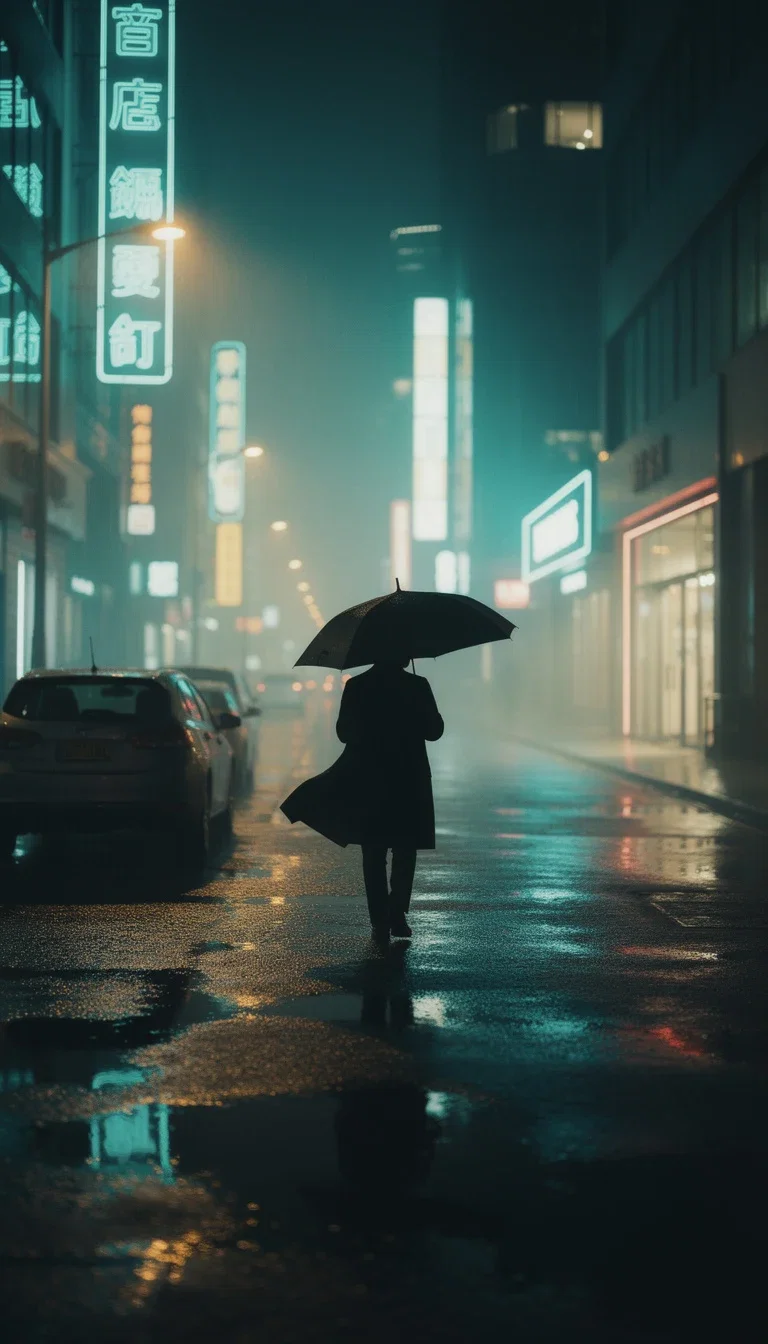
Cinematic story beat
Neon, rain, and mood — the establishing shot your script called for.
One plan, every engine
The right engines, for the right price
Credits work across every video, image, and chat model on the canvas — one bill instead of eight subscriptions.
Monthly credits
Generate across Sora 2, Veo 3.1, Seedance, Kling, Wan, Runway, Hailuo, and PixVerse from one pool.
Cents per clip
Pay per generation inside the plan instead of maintaining a subscription per provider.
Guarantee, not trial
Your first subscription includes a 30-day satisfaction guarantee, subject to the Refund Policy.
How to generate a video from text
Prompt
Describe subject, action, camera, and atmosphere. A chat model on the canvas helps sharpen the beat.
Generate
Run the prompt on Sora 2, Seedance, Kling, or Hailuo — or two engines side by side.
Compare
Judge the candidates against the brief and keep the clip that nails motion and style.
Publish
Export 9:16 for TikTok and Reels, 16:9 for YouTube, or 1:1 for feed — then ship variations.
Text to video AI is the flow that turns a written idea into a generated scene. The result improves when the script stops being a loose sentence and starts to specify subject, action, camera, environment, style, constraints, and final format. FluxoKit runs the leading text to video engines on one canvas so you can choose by job and compare clips.
When teams search for text to video AI, the real question is rarely "which tool exists." It is "how do I translate this brief into a scene that holds attention, fits the channel, and looks like a finished asset." This page turns that question into a workflow that runs inside FluxoKit.
Direct Answer
Use FluxoKit when a script has to become a usable clip without copying prompts between platforms. The canvas keeps the brief, the prompt, the variations, the editing, and the export in one place. That matters when the clip ships to Meta Ads, Reels, TikTok, a VSL, or a landing page.
A short prompt is fine for playful scenes. For ads, content, product, or sales videos, the description has to become a technical scene before you run the engine:
- Sora 2 for narrative motion and short cinematic ads.
- Veo 3.1 for controlled camera moves and premium fidelity.
- Seedance for fast social shots with low friction.
- Kling for stylized characters and dynamic action.
- Runway for editorial b-roll and reference style.
How to Use It in FluxoKit
- Translate the idea into a visible scene: who appears, what they do, where they are.
- Define camera, motion, light, rhythm, and duration.
- Pick the aspect ratio: 9:16 for vertical, 1:1 for feed, 16:9 for web.
- List the constraints: face, product, logo, text, outfit, or object that cannot change.
- Generate one short variation to validate prompt adherence.
- Refine motion and style before increasing quality, duration, or cost.
Judge the result as a production asset. If the clip ships to performance ads or a sales page, measure prompt adherence, motion realism, brand preservation, cost per variation, and iteration speed.
How to Pick the Right Engine
For a product spot, prioritize fidelity and controlled camera. For organic social, prioritize speed and variation count. For a cinematic ad, choose an engine that handles atmosphere and camera language explicitly. For a stylized scene with characters, choose a model that holds character consistency over short actions.
FluxoKit wins when the decision is not locked to one engine. You can run the same brief through different models, compare side by side, and continue with editing or copy without restarting the brief.
Use Cases
- Short cinematic ad with narrative motion, controlled camera, and a single message.
- Product demo clip that keeps packaging and brand stable while the camera moves.
- Vertical social shot built for 9:16 from the prompt up, with one clear action.
- Landing page hero loop with slow camera movement and atmospheric light.
- Story sequence combining two short clips that share style and pacing.
Writing a Better Prompt
A strong text to video prompt has five blocks: goal, context, visual, constraint, and format. Instead of "make a nice video," describe the scene, the audience, the feeling, the final format, and what cannot change.
Example: "9:16 clip of a runner on a rainy street at dawn, camera follows from the side, soft motion blur, six seconds, cinematic color, ready for Reels, no burned-in text." That level of detail gives the engine enough to produce something usable.
Where FluxoKit Beats Standalone Tools
Text to video is more than pressing a button. The difference shows up when you need to test scene direction, switch engines, refine motion, edit a detail, and keep history so the clip can be reused for an ad, a hero loop, or a sales page.
In FluxoKit the workflow stays continuous: you start with an idea, compare video engines, refine the winning variation, and move on to editing or copy without rebuilding the brief.
Related Next Steps
How to Choose
- Separate ad, social, cinematic, product, and editorial tasks.
- Show model selection criteria instead of a static leaderboard.
- Move the reader to image to video, model docs, or a comparison when the next intent changes.
30 models available in the canvas
Every model below is live in the FluxoKit studio. Each link opens its technical page with parameters, limits, and real generation examples.
- 01

Grok Imagine Video (Text to Video)
xAI · Video generation
- 02
Grok Imagine Video 1.5 (Reference)
xAI · Video generation
- 03

Veo 3.1 Text to Video
Google AI · Video generation
- 04
Gemini Omni Flash T2V
Google AI · Video generation
- 05
Gemini Omni 1.1 Flash Text to Video
Google AI · Video generation
- 06

Wan 3.0 Text to Video
Alibaba Cloud · Video generation
- 07
Wan 2.5 Text to Video
Alibaba Cloud · Video generation
- 08
Wan 2.6 Text to Video
Alibaba Cloud · Video generation
- 09
Wan 2.7 Text to Video
Alibaba Cloud · Video generation
- 10
HappyHorse 1.1 Text to Video
Alibaba Cloud · Video generation
- 11
HappyHorse Text to Video
Alibaba Cloud · Video generation
- 12

Sora 2
OpenAI · Video generation
- 13
Sora 2 Pro
OpenAI · Video generation
- 14

FLUX 3 Text to Video
Black Forest Labs · Video generation
- 15

MiniMax H3 T2V
MiniMax · Video generation
- 16
MiniMax Hailuo T2V
MiniMax · Video generation
- 17
Kling 2.6 Pro T2V
Kling · Video generation
- 18

Kling 3 T2V
fal.ai · Video generation
- 19

Seedance 2.0 T2V
ByteDance · Video generation
- 20
Seedance 2.0 Fast T2V
ByteDance · Video generation
- 21
Seedance v1.5 Pro T2V
fal.ai · Video generation
- 22
Pixverse v6 T2V
fal.ai · Video generation
- 23
Grok 4.6
xAI · Text and copy
- 24
GPT-5.2
OpenAI · Text and copy
- 25

Claude Sonnet 4.5
Anthropic · Text and copy
- 26
Claude Opus 4.5 (2025-11-01)
Anthropic · Text and copy
- 27
Claude Opus 4.6
Anthropic · Text and copy
- 28

DeepSeek V3.2
DeepSeek · Text and copy
- 29
Gemini 3.1 Pro
Google AI · Text and copy
- 30
Gemini 3.8 Flash
Google AI · Text and copy
Frequently asked questions
What is text to video AI?
Text to video AI is the workflow that turns a written description into a generated scene. The result improves when the text stops being a loose idea and starts to specify subject, action, camera, environment, style, constraints, and final format. FluxoKit runs Sora, Veo, Seedance, Kling, and Runway on one canvas so you can compare scenes.
How much does text to video cost on FluxoKit?
You pay per generation inside your FluxoKit plan instead of a separate monthly subscription per engine. Cost depends on the model, the duration, and how many variations you run, but you do not need to stack several US-dollar platforms to cover one shot.
Which engine should I pick for an ad versus a story?
Pick by format and intent. Sora 2 for narrative motion and short cinematic ads, Veo 3.1 for controlled camera and premium fidelity, Seedance for fast social shots, Kling for stylized character motion, and Runway for editorial b-roll. The canvas lets you test two engines before committing to the final length.
How do I avoid generic looking clips?
Write a scene, not a vibe. Define who appears, what they do, where they are, the camera move, the duration, and what cannot change. Generate one short variation, judge it, and only then scale up to the final shot.
Can I keep working on the clip after generating it?
Yes. The same canvas takes the clip into editing, upscaling, or extension without re-uploading. You can also write the script, the caption, and the ad copy in the same project.
Next step
Access 127 AIs in one canvas, without subscribing to each one.
One plan, monthly credits, and every text-to-video engine on this page. Write your first clip today.
Turn a prompt into a video on FluxoKit
This clip started as one sentence on the canvas. Yours can start the same way.
Wan 2.6
Misty landscape scene from text
Ready when you are
Write your first video in minutes
Every top text-to-video engine, one canvas, one plan — backed by a 30-day first-subscription satisfaction guarantee, subject to the Refund Policy.