
Restore Old Photos
Scratches out, tears repaired, faded color brought back — the faces stay exactly who they are.
The 25 models on this page are already included, with no separate subscription per tool. 14,500+ real generations already delivered on the platform. Updated
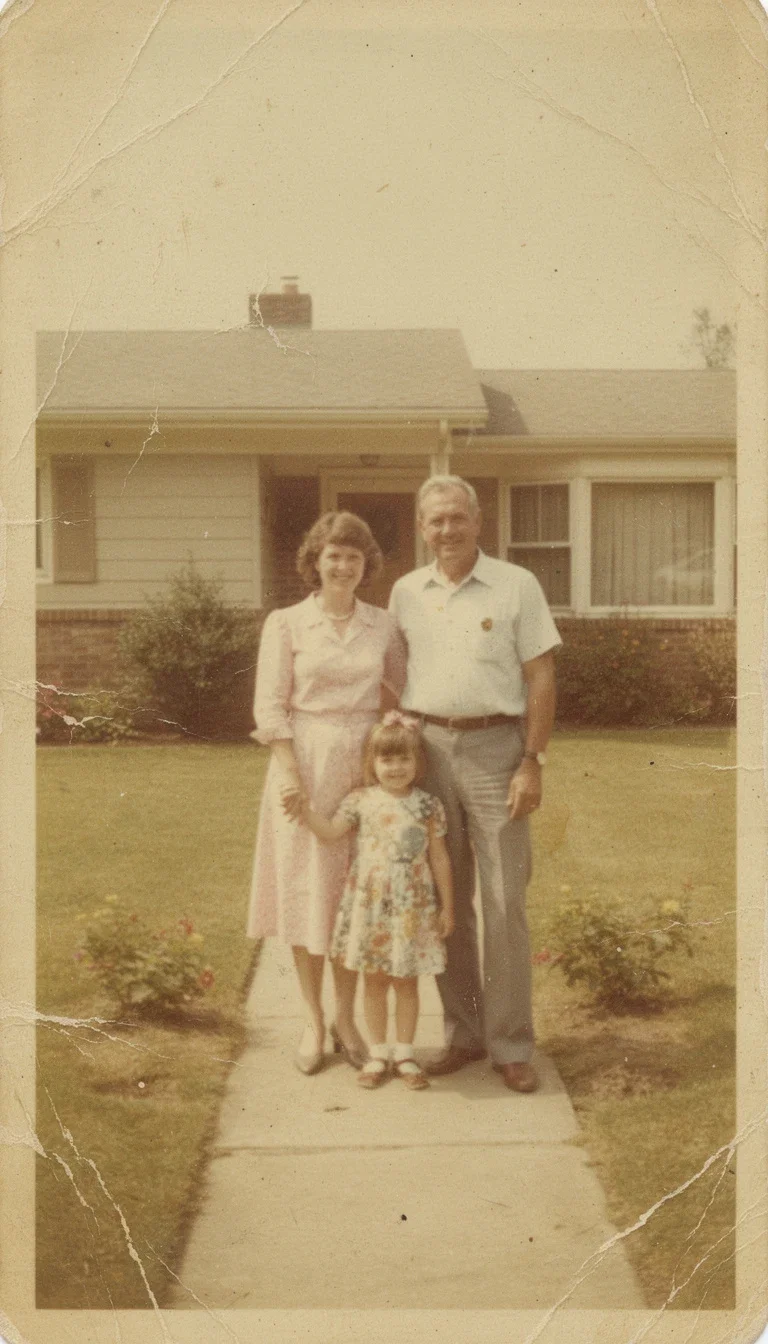
Before
Scratched, faded 1970s print
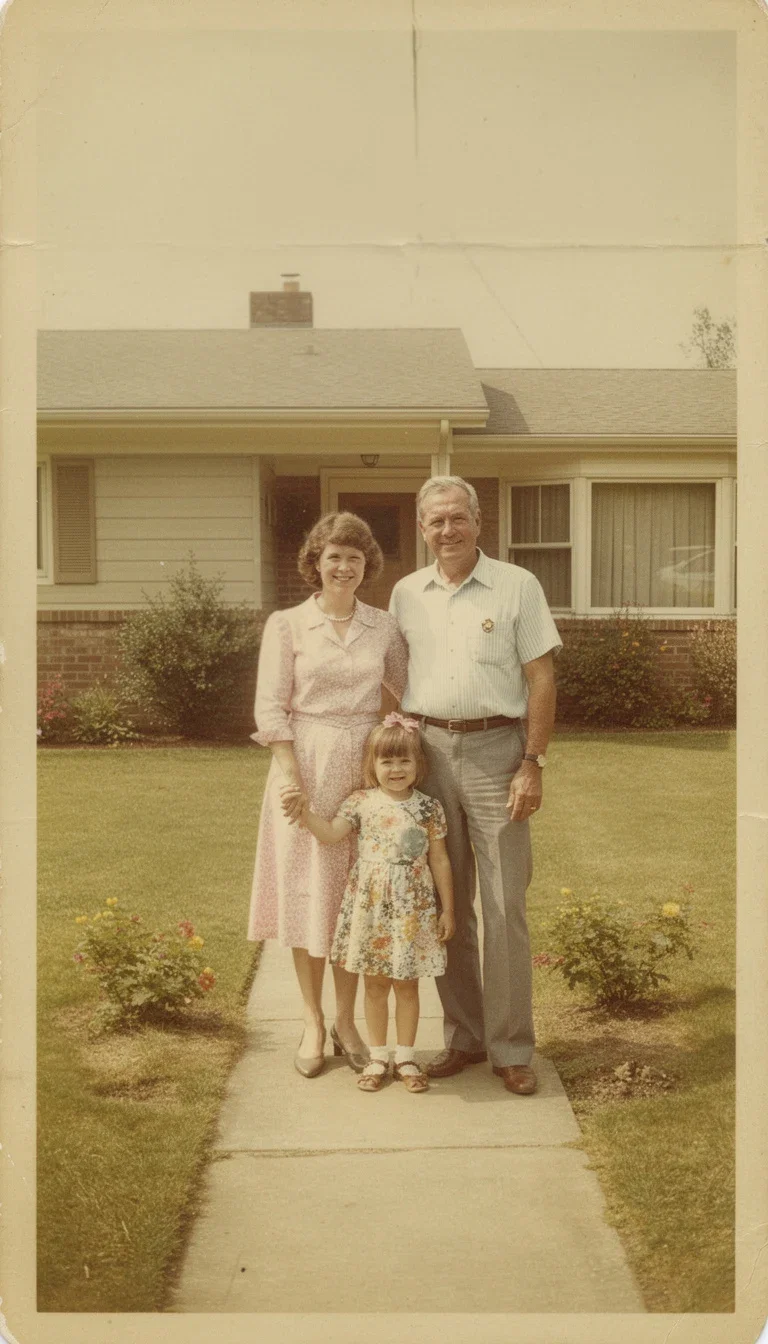
After
Same photo, repaired and recolored
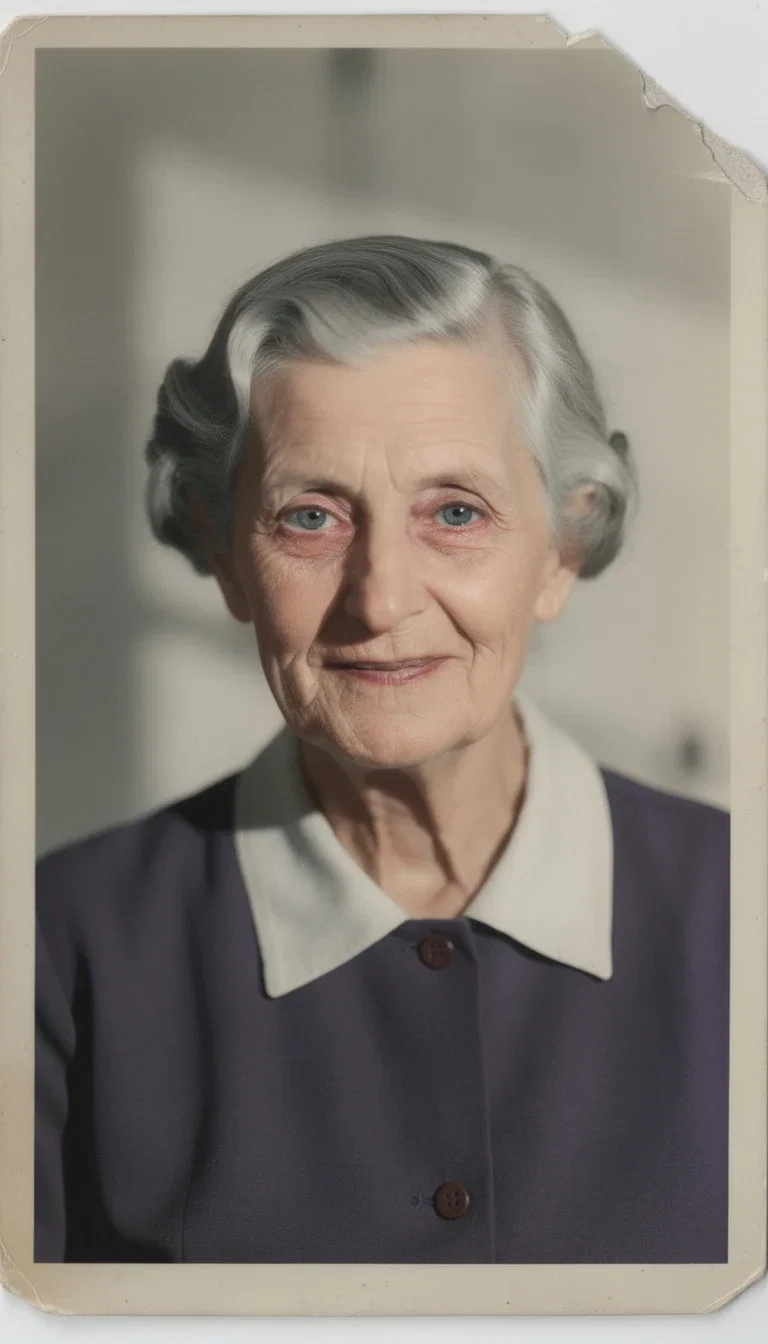
After
Same portrait, repaired and colorized
Damage repair without repainting people
The family print on this page carried five decades of scratches, creases, and color shift — the restoration removes the damage and keeps every face, pose, and detail identical.
That identity constraint is the entire craft: a restoration that changes grandpa's face is a fake, not a fix.
Modern edit engines repair the print while treating the people as untouchable.
After
Same photo, repaired and recolored
Any damage, one instruction
Powered by FLUX, GPT Image 2, Nano Banana Pro 2, and Qwen editing engines.
Scan or photo
A flatbed scan or a phone photo of the print both work as sources.
The repair
Scratches, tears, stains, creases, and fading named in one sentence.
Optional color
Colorize black-and-white or correct a shifted palette to natural tones.
Before
1970s damage
After
Repaired color
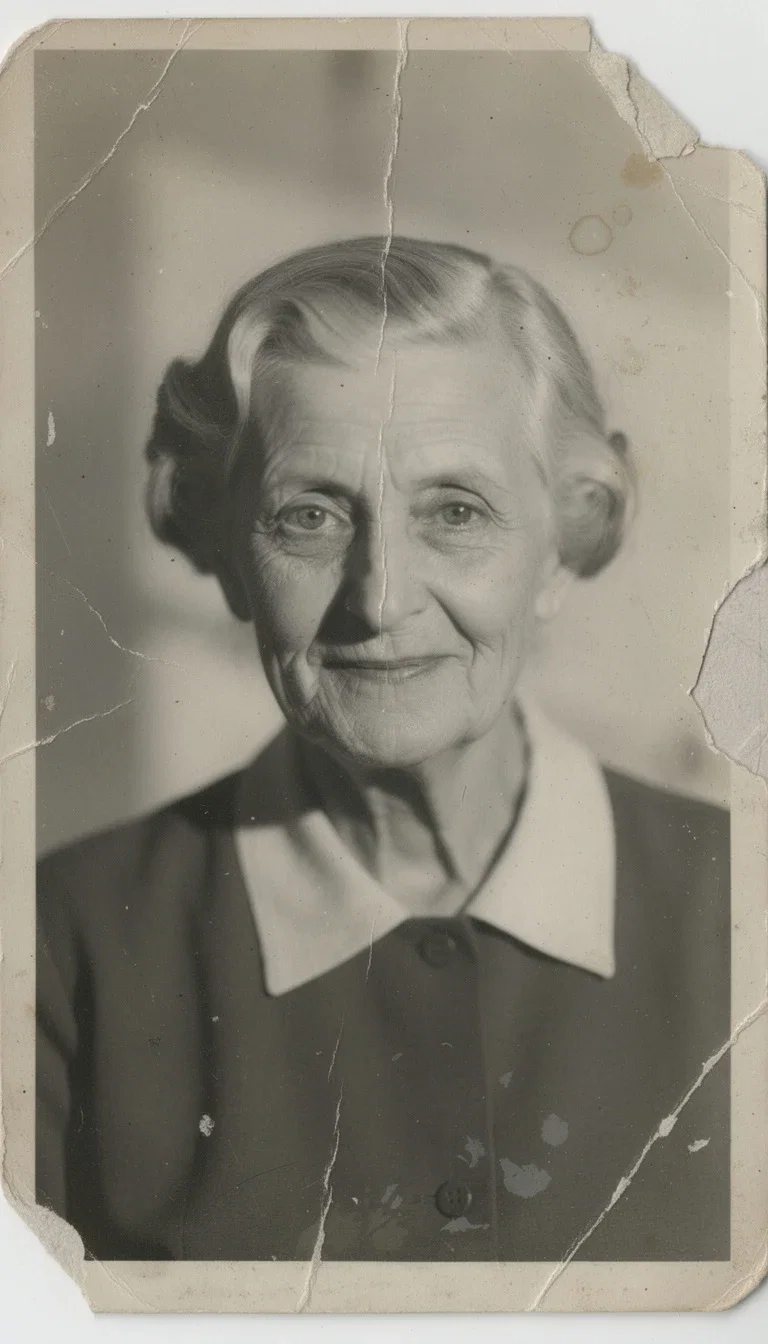
Before
Torn B&W
After
Colorized
Black and white, brought to life
Colorization turns an archival portrait into someone you recognize at the dinner table.
Skin tones, fabric colors, and background hues land naturally — and the tear in the corner is gone.
One instruction covers the repair and the color at once.
After
Same portrait, repaired and colorized
The whole shoebox, not one frame
Family archives come in stacks — decades of prints with the same classes of damage.
Run the same restoration instruction across the batch on one canvas, then upscale the keepers for printing.
Credits price the shoebox; no per-photo restoration fees.
Before
Torn 1950s portrait
FluxoKit by the numbers
127+
AI models in one canvas
1
instruction per restoration
14,500+
real generations delivered
Real restorations, done on FluxoKit
Both pairs are the same print before and after one restoration pass — faces held identical throughout.
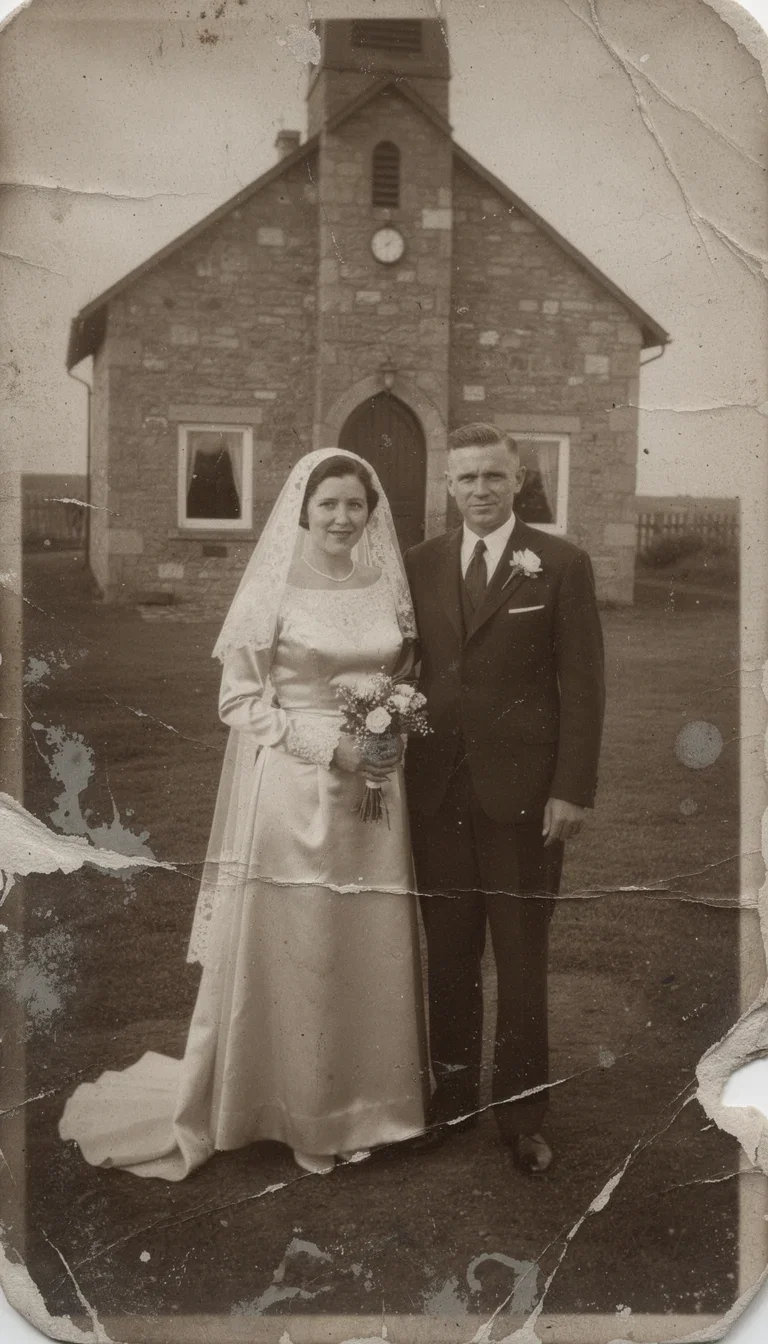
The damage
Creases, tears, stains
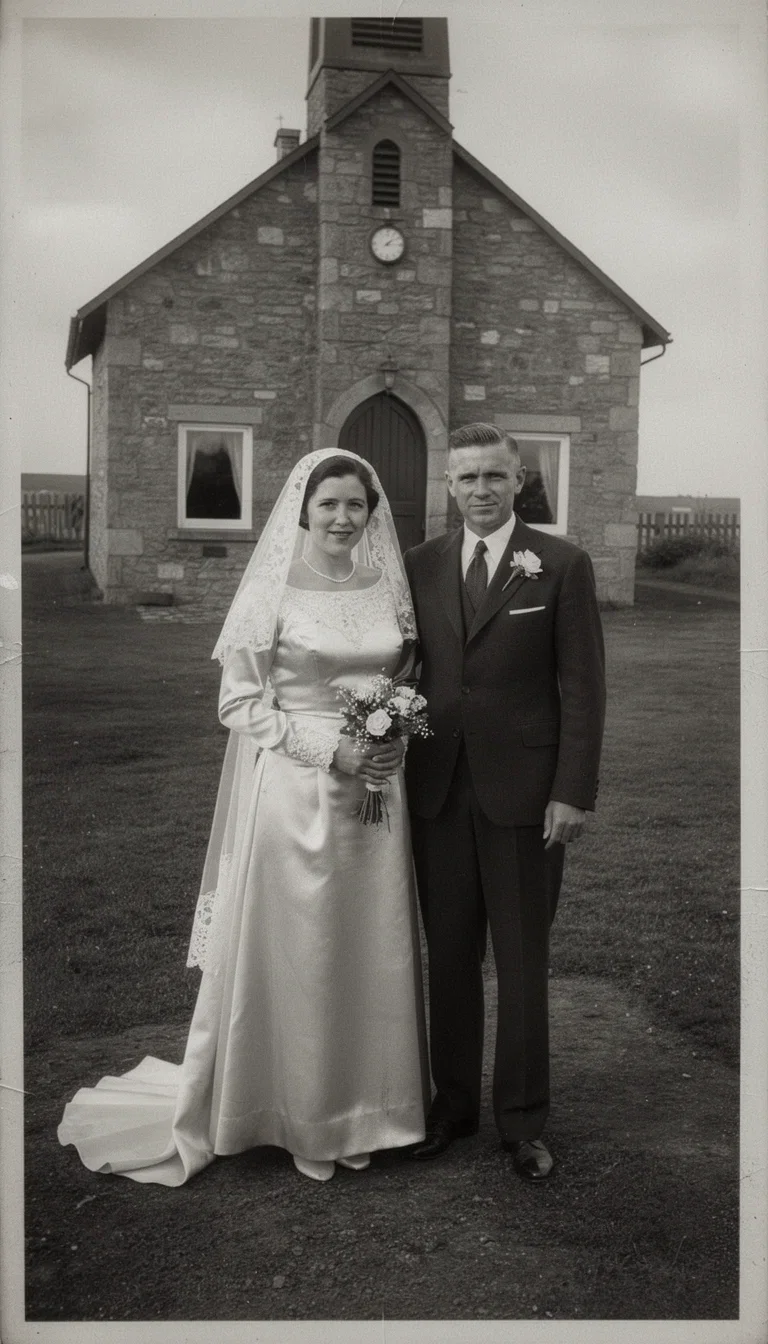
Fully repaired
Same print, restored
The source
Any scan works
How to restore old photos with AI
Digitize the print
Scan it or photograph it flat in even light — the engines work from whatever you have.
Name the damage
Scratches, tears, stains, fading, and color shift in one instruction. Add colorization if the print is black and white.
Check the faces
The restoration must keep every person identical. Compare, then upscale the keeper for printing or sharing.
Restoring old photos with AI in 2026 replaces a professional studio scan for most cases. FluxoKit runs the leading upscale, contextual edit, and retouch engines on one canvas, in plain English, priced per image.
When families and archivists search for restore old photos, the real question is rarely "which tool exists." It is "which engine handles this specific damage, and how do I keep the people in the photo looking like themselves." This page turns that question into a workflow that runs inside FluxoKit.
Photo Types AI Can Recover
A practical rule that works in 2026.
- Faded photo with lost color goes through Topaz Image Upscale in Lo-Fi mode to recover color and contrast without inventing detail.
- Very small or low resolution photo goes through Recraft Crisp Upscale or Topaz at 4x for technical detail with faithful sharpness.
- Torn or stained photo goes through Flux Kontext Edit, which masks the defect and rebuilds the region while preserving the original light.
- Portrait with grainy skin goes through Enhancor Skin Realism Pro for subtle correction without flattening texture.
- Slide or negative scan combines Topaz Upscale and a color adjustment with Flux Kontext for a clean modern file.
- Sepia or black and white photo goes through Flux Kontext with a specific colorization prompt that preserves the original lighting.
How to Restore on the Canvas
A practical five step rule.
- Upload the photo at /workflow. The canvas accepts PNG, JPG, and WebP up to 20MB.
- Evaluate the condition: faded, torn, low resolution, grainy skin, or stained. Each condition has a preferred engine.
- Pick the engine in the panel. Topaz Image Upscale for general technical quality, Flux Kontext for specific defects, Enhancor for portraits, Recraft for faithful sharpness.
- Describe the adjustment when the engine is contextual. Good examples: "restore the original color," "remove the stain in the upper right corner," "rebuild the torn area while keeping the original lighting," "subtle skin retouch that preserves natural texture."
- Generate and iterate. Run two engines in parallel on a critical photo (Topaz and Flux Kontext) and pick the better result.
Use Cases
- Family archives with hundreds of old photos restored through automated Topaz batches.
- Vintage professional photography with 1980s and 1990s sessions turned into a 4K digital portfolio.
- Real estate with archived property photos given sharpness and updated color without reshooting.
- Genealogy and family history with grandparents' portraits brought to a frame-quality version.
- Media and journalism with archive photos lifted to premium quality for documentaries and retrospectives.
- Weddings and anniversaries with old photos repurposed for invitations or decor at current quality.
Engine Comparison
- Topaz Image Upscale is the reference for technical quality. Standard for general use, Lo-Fi for poor source quality, High Fidelity for maximum preservation. First choice for most cases.
- Flux Kontext Edit offers contextual editing with photoreal coherence. Masks the defect, rebuilds the region, keeps edges, light, and shadow consistent. Best for torn or stained photos.
- Enhancor Skin Realism Pro does professional skin and face retouching. Keeps natural texture without plastic skin. Best for portraits of real people.
- Recraft Crisp Upscale sharpens without inventing new detail. Best for a photo that is already good and just needs a clean factor.
Family Archive Flow
A realistic estimate for restoring one hundred old family photos:
- Manual triage (separate faded from torn): about an hour.
- Batch upload on the canvas: fifteen minutes.
- Topaz Upscale 2x on every photo in parallel: thirty to sixty minutes.
- Flux Kontext on the ten to twenty photos with specific defects: thirty to sixty minutes.
- Enhancor Skin Realism on the twenty priority portraits: thirty minutes.
- Final review and exports: about an hour.
Total: four to six hours for one hundred restored photos, with material cost in the cents per image range instead of studio pricing and weeks of waiting.
Common Mistakes That Hurt the Restoration
- Skipping the condition check. Running the wrong engine on a faded photo when it only needs an upscale.
- Locking into one engine. Topaz is not the best fit for torn photos, Flux Kontext does not scale at volume. Match the engine to the photo.
- Asking for colorization without a reference. Without a color brief, the model invents a palette. Provide a visual reference or describe the expected palette.
- Forcing 8x on a tiny photo. A very high factor invents detail that never existed. Start at 2x and only scale if needed.
- Skipping human review on historical photos. AI can change documentarily important detail. Review before publishing historical material.
Where FluxoKit Beats Standalone Tools
Restoring a photo is rarely the only step. The full flow often involves background work, color correction, and a short animation for memorial videos. FluxoKit keeps every step on one canvas, with one history, one plan, and one export pipeline.
The same restored photo can move into background work or into image to video to become a short memory clip for a family event.
Related Next Steps
How to Choose
- Separate faded, torn, low resolution, portrait, and slide tasks.
- Show engine selection criteria instead of a single recommendation.
- Move the reader to upscale, background work, or short video when the next intent changes.
Why families restore photos on FluxoKit
One canvas replaces the restoration service and its per-photo pricing.
Identity preserved
Faces, poses, and details stay exactly as photographed — the fix never invents.
Every damage class
Scratches, tears, stains, creases, fading, and color shift in one pass.
Natural colorization
Black-and-white portraits gain believable skin tones and period-true colors.
Print-ready output
Upscale the restoration on the same canvas for framing or albums.
One plan, monthly credits
The whole shoebox costs credits, not per-photo restoration fees.
First-subscription guarantee
Restore real memories for a month. Refund requests are governed by the first-subscription guarantee and Refund Policy.
25 models available in the canvas
Every model below is live in the FluxoKit studio. Each link opens its technical page with parameters, limits, and real generation examples.
- 01

Flux 2 Pro
Black Forest Labs · Image editing
- 02
Flux 2 Flex
Black Forest Labs · Image editing
- 03
Flux Kontext
Black Forest Labs · Image editing
- 04

Seedream 5.0 Edit
ByteDance · Image editing
- 05
Seedream 5.0 Pro Edit
ByteDance · Image editing
- 06
Seedream 5.0 Pro Reference
ByteDance · Image editing
- 07

GPT Image-1 Edit
OpenAI · Image editing
- 08
GPT Image-1.5 Edit
OpenAI · Image editing
- 09
GPT Image-2 Edit
OpenAI · Image editing
- 10
GPT Image 2.5 Sunburst Edit
OpenAI · Image editing
- 11

Grok Image 2 Edit
xAI · Image editing
- 12
Grok Image Edit
xAI · Image editing
- 13

QWEN Image Editor Plus
Alibaba Cloud · Image editing
- 14
QWEN Image Editor Max (New)
Alibaba Cloud · Image editing
- 15
QWEN Image Editor 2.0 Pro
Alibaba Cloud · Image editing
- 16

Nano Banana Pro Edit (Gemini 3.0)
Google AI · Image editing
- 17
Nano Banana Pro 2 Edit (Gemini 3.1)
Google AI · Image editing
- 18

Recraft Crisp Upscale
fal.ai · Image editing
- 19

Topaz Image Upscale
Topaz Labs · Image editing
- 20

MiniMax Image-01 Edit
MiniMax · Image editing
- 21
Flux 2 Pro Edit
Black Forest Labs · Image editing
- 22
Flux 2 Flex Edit
Black Forest Labs · Image editing
- 23
Flux 2 Klein 9B LoRA Edit
Black Forest Labs · Image editing
- 24
HY-WU Edit
HY-WU · Image editing
- 25
Flux Kontext Edit
Black Forest Labs · Image editing
Frequently asked questions
How do I restore an old photo with AI?
Upload the photo on the FluxoKit canvas and pick the engine that matches the damage. Topaz Image Upscale handles technical quality, Flux Kontext Edit repairs a damaged region, Enhancor Skin Realism retouches faces, and Recraft Crisp Upscale gives a faithful sharper version. In seconds the photo turns into a restored high resolution file.
What is the best AI to restore old photos?
It depends on the condition. Topaz Image Upscale leads on overall technical quality. Flux Kontext masks defects (tears, stains) and rebuilds the region. Enhancor Skin Realism retouches faces in old portraits. Recraft Crisp Upscale focuses on sharpness without inventing detail.
How much does it cost to restore old photos on FluxoKit?
You pay per image inside your FluxoKit plan. A simple restoration is a few cents, a complex restoration with masked repairs and skin retouch costs more, and a family archive of one hundred photos is closer to a small batch fee than a studio invoice.
Can I restore without losing the original look?
Yes, if you use the right engine. Recraft Crisp Upscale and Topaz High Fidelity preserve the original. Flux Kontext only changes the masked region. Enhancor does subtle skin retouching without plastic skin.
Does it work for family slides or torn photos?
Yes, both. A slide scan goes through Topaz Upscale plus color correction with Flux Kontext. A torn photo is masked in the damaged region with Flux Kontext Edit, which rebuilds the area while keeping light and tone consistent with the original.
Next step
Access 127 AIs in one canvas, without subscribing to each one.
One plan, monthly credits, the whole shoebox instead of per-photo fees. Start today.
Ready when you are
Restore your first photo in minutes
Damage out, color back, faces untouched — one canvas, one plan, backed by a 30-day first-subscription satisfaction guarantee, subject to the Refund Policy.