AI Background Remover
One instruction removes the background — and the next one replaces it with any scene you can describe, lit to match the subject.
The 25 models on this page are already included, with no separate subscription per tool. 14,500+ real generations already delivered on the platform. Updated
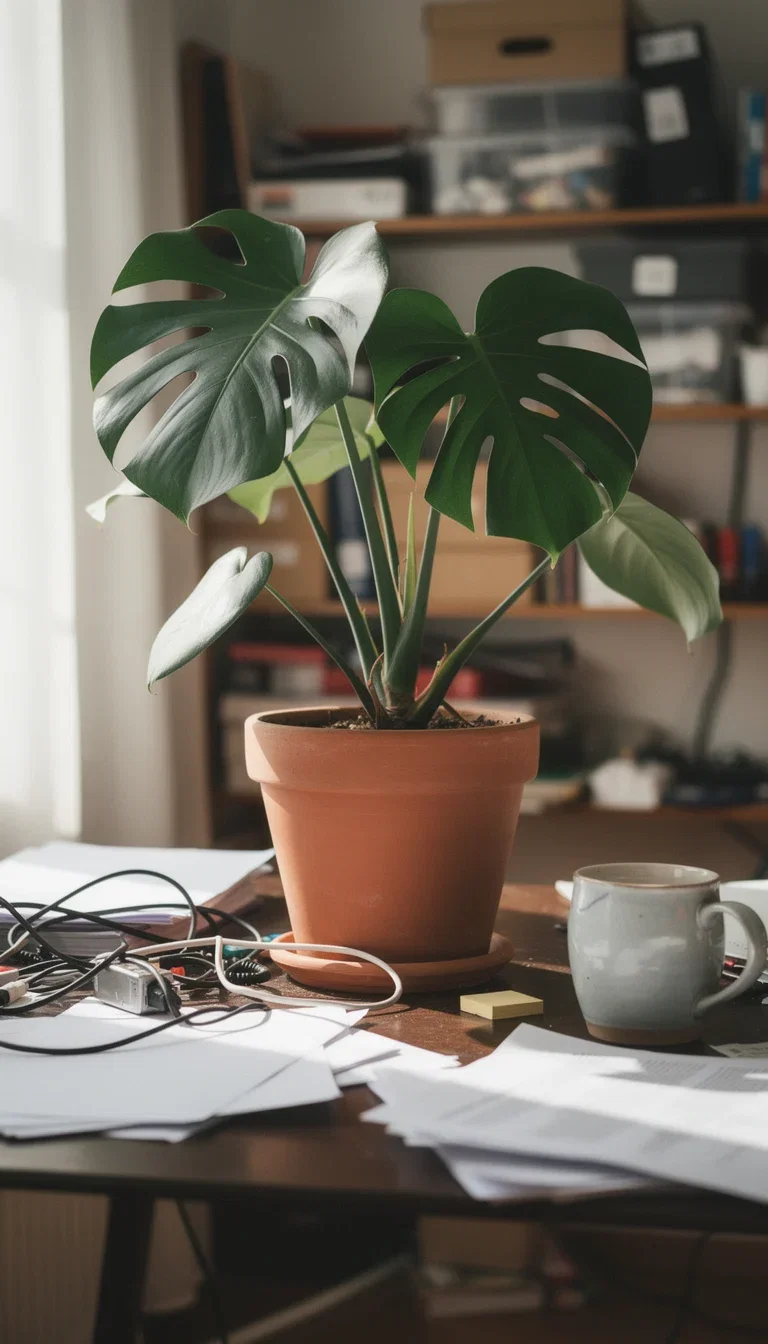
Before
Plant on a messy desk

After
Same plant, pure white
After
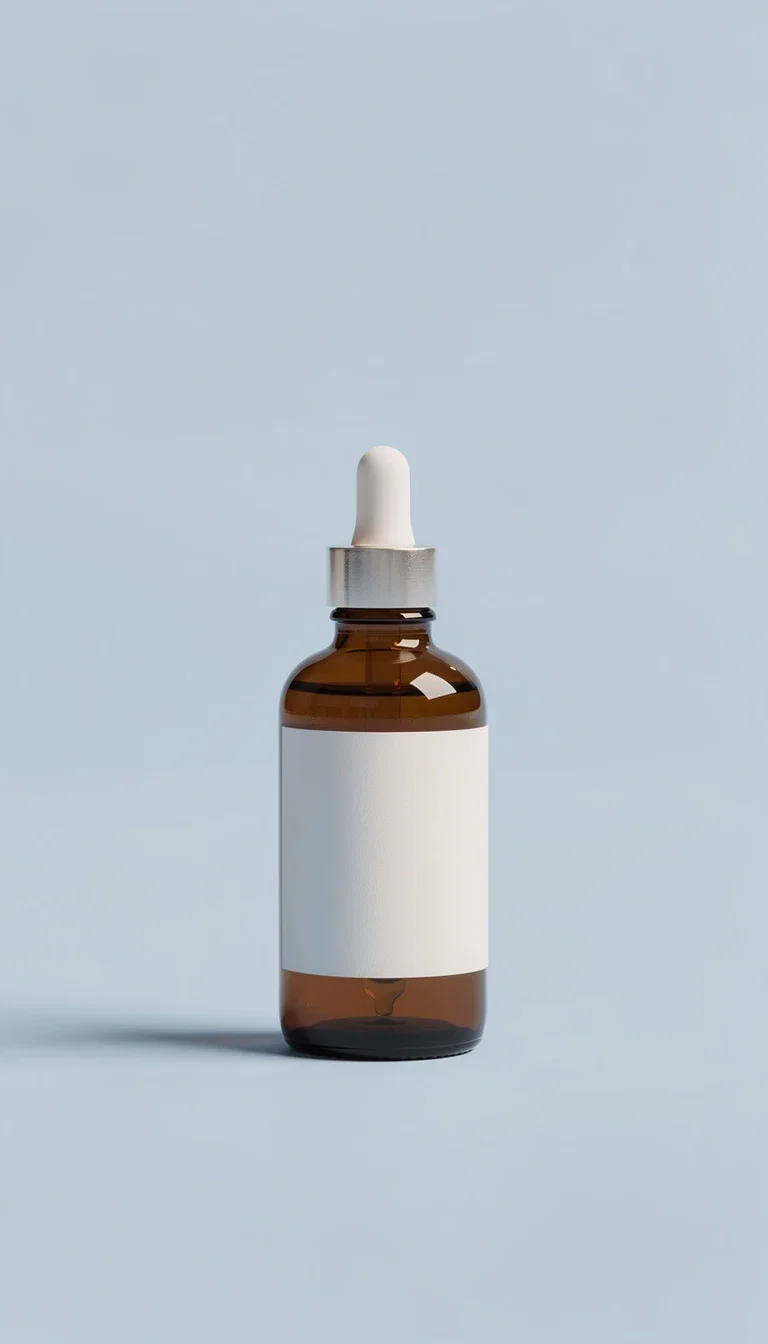
Same bottle, new scene
From desk clutter to catalog-clean
The monstera on this page went from a paper-strewn desk to marketplace white without a mask, a magic wand, or an export.
The leaf fenestrations, the stems, and the terracotta's texture survive the trip untouched.
That is the whole workflow: upload, instruct, download.
After
Same plant, pure white
Any subject, any destination
Powered by FLUX, GPT Image 2, Nano Banana Pro 2, and Qwen editing engines.
Product shots
SKUs to marketplace white with believable contact shadows.
Portraits
People onto studio backdrops with hair edges held.
Scene swaps
The subject into a described set — beach, studio, or brand world.
Before
Desk clutter
After
Catalog white

Before
Kitchen counter
After
Pastel studio
Replace beats erase
Removal is rarely the goal — the listing needs white, the ad needs a brand color, the seasonal campaign needs a scene.
The bottle pair shows a replacement: kitchen clutter out, pastel studio in, shadow rebuilt for the new surface.
Describe the destination background and the engine lights the subject for it.
After
Same bottle, new scene
Built for volume
A catalog is dozens of SKUs times three channels — each with its own background rule.
The same instruction runs across the whole set on the canvas, so the white-background pass is a batch, not an afternoon.
Credits price the batch; no per-image cutout fees.
Before
Plant on a messy desk
FluxoKit by the numbers
127+
AI models in one canvas
1
instruction per removal
14,500+
real generations delivered
Real removals, done on FluxoKit
Both pairs are the same object before and after a single background instruction — nothing else changed.
Scene replacement
Pastel studio
White delivery
Soft shadow rebuilt
The source
Any photo works
How to remove a background with AI
Upload the shot
Phone photos work — clutter, mixed light, and busy scenes are the normal case, not the edge case.
Name the destination
Remove it, make it white, or describe the replacement scene in a sentence.
Batch the rest
Apply the same instruction across the catalog and export per channel.
A modern AI background remover is more than a single cutout button. It is a workflow that handles tricky edges, swaps to new scenes, and runs in batch without monthly subscriptions per provider. FluxoKit hosts Flux Kontext, Nano Banana Edit, GPT Image 2 Edit, and QWEN Image Edit on one canvas.
When ecommerce teams, agencies, and creators search for an AI background remover, the issue is usually a bad edge on hair, fabric, or glass, or the need to swap the scene without re-uploading. This page turns the search into a workflow.
Direct Answer
Use FluxoKit when you need clean cutouts and scene swaps without juggling six tools. The canvas keeps the upload, the engine, the prompt, the variations, and the export together. Pick by edge complexity and final destination:
- Flux Kontext for photoreal edges on hair, sheer fabric, glass, and liquid.
- Nano Banana Pro 2 Edit for natural prompts and a prompt-faithful flow.
- GPT Image 2 Edit for multi-step instructions in one prompt.
- QWEN Image Edit for fast variation when you need to test several backgrounds.
How to Use It in FluxoKit
- Open the canvas at /workflow and upload the source photo.
- Pick the engine by edge risk and prompt complexity.
- Describe the output: transparent PNG, white background, studio gray, lifestyle scene.
- Generate and compare. For critical edges, run two engines in parallel.
- Send the winner into upscale, retouch, or animation without leaving the canvas.
Where Single-Engine Cutouts Fail
Single-tool background removers lock you to one algorithm. The moment hair, lace, or glass appears, the edge breaks and there is no fallback. FluxoKit avoids that lock by letting you swap engines on the same upload and the same brief, in one plan with cents per generation.
Scene Swap and Studio Replacement
The same engines also replace the scene. Practical examples:
- Ecommerce and dropshipping with a white catalog background and a soft realistic shadow.
- Premium hero shots with cinematic light and a clean dark background.
- Lifestyle product use with a kitchen, gym, or office scene.
- Headshots and portraits with a neutral studio gray and a soft gradient.
For high-volume work, describe the background once and process the batch in parallel.
Use Cases
- Ecommerce catalogs converting raw supplier photos into ready-to-list assets.
- Performance creatives testing 10 backgrounds on one product photo.
- Agency client work preparing brand-ready cutouts at scale.
- Real estate marketing with sky replacement and light corrections.
- Creator content isolating subject for thumbnails, covers, and Reels frames.
How to Pick the Right Engine
- Hair, lace, glass, liquid: Flux Kontext.
- Fast natural prompt: Nano Banana Pro 2 Edit.
- Multi-step instruction: GPT Image 2 Edit.
- Cost-aware batch variation: QWEN Image Edit.
For a hero shot that will run on a paid campaign, run two engines in parallel and compare on the canvas. The extra cost stays in cents per generation. The risk avoided is a bad edge on a product image that will ship thousands of impressions.
Workflow Integration
The background remover sits between the source photo and the final asset. FluxoKit connects it directly to:
Related Next Steps
How to Choose
This page is built so readers, AI assistants, and Google can pick a background remover by edge risk and final asset, not by a brand name.
- Separate cutout, scene swap, batch, and creator tasks.
- Show selection criteria by edge complexity and destination.
- Connect cutout to upscale, retouch, or animate when the next intent changes.
Why creators remove backgrounds on FluxoKit
One canvas replaces the cutout subscription and the retouch queue.
Detail survives
Stitching, glass, and hair edges come through the removal intact.
Shadows rebuilt
Subjects sit on the new background with real contact shadows.
Replacement scenes
Any described set becomes the new backdrop, lit to match.
Catalog-scale batching
One instruction across every SKU — no per-image handling.
One plan, monthly credits
Removal, generation, and upscale share one credit pool.
First-subscription guarantee
Clean up real catalogs for a month. Refund requests are governed by the first-subscription guarantee and Refund Policy.
25 models available in the canvas
Every model below is live in the FluxoKit studio. Each link opens its technical page with parameters, limits, and real generation examples.
- 01

Flux 2 Pro
Black Forest Labs · Image editing
- 02
Flux 2 Flex
Black Forest Labs · Image editing
- 03
Flux Kontext
Black Forest Labs · Image editing
- 04

Seedream 5.0 Edit
ByteDance · Image editing
- 05
Seedream 5.0 Pro Edit
ByteDance · Image editing
- 06
Seedream 5.0 Pro Reference
ByteDance · Image editing
- 07

GPT Image-1 Edit
OpenAI · Image editing
- 08
GPT Image-1.5 Edit
OpenAI · Image editing
- 09
GPT Image-2 Edit
OpenAI · Image editing
- 10
GPT Image 2.5 Sunburst Edit
OpenAI · Image editing
- 11

Grok Image 2 Edit
xAI · Image editing
- 12
Grok Image Edit
xAI · Image editing
- 13

QWEN Image Editor Plus
Alibaba Cloud · Image editing
- 14
QWEN Image Editor Max (New)
Alibaba Cloud · Image editing
- 15
QWEN Image Editor 2.0 Pro
Alibaba Cloud · Image editing
- 16

Nano Banana Pro Edit (Gemini 3.0)
Google AI · Image editing
- 17
Nano Banana Pro 2 Edit (Gemini 3.1)
Google AI · Image editing
- 18

Recraft Crisp Upscale
fal.ai · Image editing
- 19

Topaz Image Upscale
Topaz Labs · Image editing
- 20

MiniMax Image-01 Edit
MiniMax · Image editing
- 21
Flux 2 Pro Edit
Black Forest Labs · Image editing
- 22
Flux 2 Flex Edit
Black Forest Labs · Image editing
- 23
Flux 2 Klein 9B LoRA Edit
Black Forest Labs · Image editing
- 24
HY-WU Edit
HY-WU · Image editing
- 25
Flux Kontext Edit
Black Forest Labs · Image editing
Frequently asked questions
What is an AI background remover?
An AI background remover isolates the subject of a photo from its background using generative edit models. The right engine matters: Flux Kontext for photoreal edges, Nano Banana Pro 2 Edit for prompt-faithful work, GPT Image 2 Edit for multi-step instructions, and QWEN Image Edit for fast variation. FluxoKit runs them on one canvas with one upload.
Which AI background remover is most accurate?
For sharp edges on hair, sheer fabric, glass, and liquid, Flux Kontext is the default. For natural English or Portuguese prompts, Nano Banana Pro 2 Edit is the easiest path. For complex multi-step instructions in one prompt, GPT Image 2 Edit is the right choice. For fast variation, QWEN Image Edit is a current option.
Can I swap to a new background after the cutout?
Yes. The same engines can replace the background with a clean studio, a lifestyle scene, or a branded environment. Describe the new background in the prompt and the canvas delivers the cutout plus the new scene in one pass.
How much does an AI background remover cost on FluxoKit?
Pay per image in one plan, cents per generation, with a 30-day satisfaction guarantee on your first paid subscription, subject to the Refund Policy. You skip the per-tool monthly fee of single-engine cutout apps and you compare engines on the same canvas.
Can I run a batch of product photos at once?
Yes. The canvas processes in parallel. Upload the batch, pick the engine once, and the canvas returns the cutout set in minutes. This is the fastest way to convert a supplier photo batch into a clean ecommerce catalog.
Next step
Access 127 AIs in one canvas, without subscribing to each one.
One plan, monthly credits, removals and replacement scenes on one canvas. Start today.
Ready when you are
Remove your first background in seconds
Upload, instruct, download — one canvas, one plan, backed by a 30-day first-subscription satisfaction guarantee, subject to the Refund Policy.